



A still desktop picture is a waste of a good screen. But most of the live wallpaper apps I tried came with a catch. Usually a subscription, or a Pro tier holding the good wallpapers hostage.
Most of them are Electron apps wrapping a web page. They sit at 300 to 400 MB of RAM and keep your CPU warm all day, for a picture that moves.
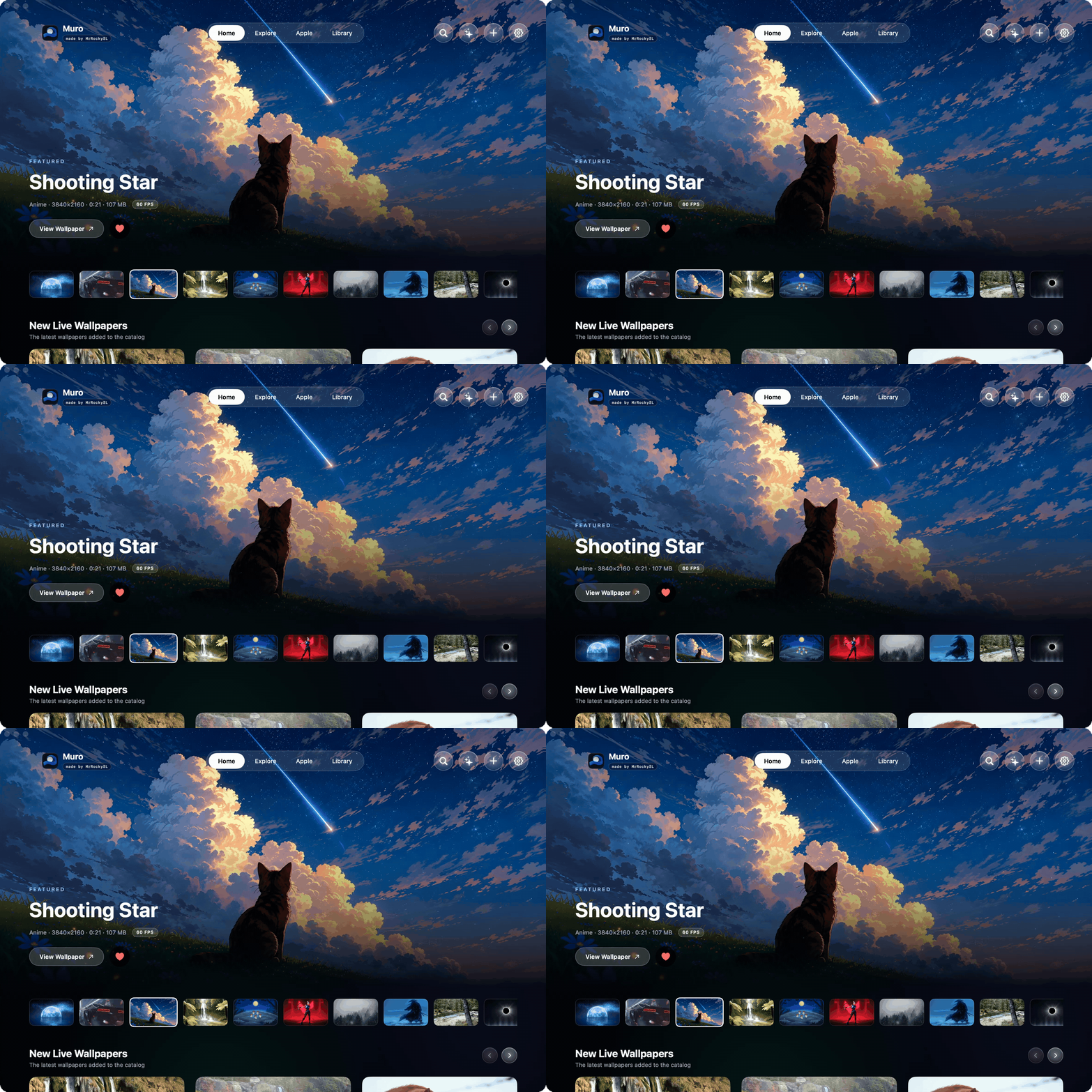
Muro is a native macOS app that plays looping video wallpapers on every display, and lets you browse them in a full screen gallery. It's written in Swift and SwiftUI, hands video decoding to your Mac's media hardware instead of the CPU, and pauses itself the moment you can't see it.
Everything is free. No Pro tier, no paywall, no license key, no account. Every wallpaper and every feature is unlocked.
- 🌙 Live video wallpapers. Looping, seamless, on every display at once.
- 🪄 Interactive wallpapers. A new kind of wallpaper that follows your pointer and moves with your Mac's sound. Three come with Muro, and you can import your own. Desktop only, and they use more CPU and RAM than a live wallpaper.
- 🔒 Lock screen live wallpapers. Play a wallpaper on your lock screen too, not just the desktop. Set it to the desktop, the lock screen, or both, on every display. Set the lock screen only, and the desktop keeps your own picture. Requires macOS 26 or newer.
- 🖥️ Screen saver. Muro can be your screen saver as well, playing video rather than a still picture, and you set how long your Mac waits before it starts. Requires macOS 26 or newer.
- 🍎 The Apple section. Apple's aerials, Dynamic Wallpapers and screen savers in a tab of their own. The screen savers come as seamless 4K videos, so they play smoothly on the desktop and the lock screen too.
- 🪶 Very low CPU usage. HEVC decoded in hardware, never on the CPU.
- 😴 Pauses itself on full screen apps, display sleep, screen lock, Low Power Mode and low battery. A paused wallpaper uses no CPU at all.
- 🖱️ Play only on desktop. Hold the wallpaper still while you work and let it play when the desktop is clear, one screen at a time.
- ⚡ Smooth or Efficient. Keep a wallpaper's original frame rate, or drop it to 30 fps to halve the power draw. Your choice, per wallpaper.
- 🖼️ Explore gallery. Browse the catalog, preview full screen, download only what you want.
- 🔄 New wallpapers arrive on their own. The library updates without updating the app. More on that below.
- 📃 Playlists. Rotate through a set on a timer, shuffled or in order. The desktop, the lock screen and the screen saver can each play their own.
- ⏱️ Automations. Give every wallpaper its own time. Ten seconds each, or a full day schedule where each wallpaper has its own hours.
- ⏸️ Pause after a set time. Let a wallpaper play for a while after it changes or after you unlock, then hold still. Set it in seconds, minutes or hours, for everything or for one wallpaper, and turn on Replay on Clear Desktop to get that time again whenever your desktop is clear.
- 🗑️ Delete what you do not want. Remove wallpapers one at a time or several at once, imported videos included.
- 📥 Import your own. Drop in any video and it gets transcoded once to HEVC and added to your library. Screen savers too: add
.saverfiles like XScreenSaver and set them from Muro. And interactive wallpapers: an HTML page, or a folder with one. - 🔊 Sound for your own videos. Turn on Live Wallpaper Sound in Settings, and videos you add from then on play with their sound. The one you set last is the one you hear.
- 🎛️ Menu bar controls. Play, pause, skip and switch live wallpapers without opening the app. Every display has a page of its own with its own sound button, and your ten most recent live wallpapers are a swipe away.
- 🔗 Links from other apps. A Shortcut, a script or another app can switch to a live wallpaper in your Library, pause it or resume it with a
muro://link. More on that below. - 🌐 Eleven languages. English, Simplified and Traditional Chinese, Japanese, Korean, Spanish, French, German, Italian, Brazilian Portuguese and Russian. Muro follows your Mac's language, or you can pick another in Settings or the menu bar.
- ✨ Tells you when there is a new Muro. What's New shows what changed in the release and downloads it for you.
- 💾 Space control. See what each wallpaper costs on disk, remove downloads you're done with, or keep them all on another drive.
- 🆓 Free and source available. Anyone can use it and read the code.
Requires macOS 14 (Sonoma) or newer. The build is universal, so it runs on both Apple Silicon and Intel Macs. Lock screen and screen saver wallpapers need macOS 26 or newer. On macOS 26 and later the interface uses SwiftUI's native liquid glass; on older versions it falls back to translucent materials, which looks slightly different but works the same.
brew install --cask MrRockySL/muro/muro- Download the latest DMG from murowallpaper.com or the Releases page.
- Open it and drag Muro into your Applications folder.
On first launch, let it through macOS security. Muro is free and self signed rather than carrying a paid Apple notarised certificate, so macOS blocks the first launch with a "can't be opened… Apple could not verify it is free of malware" warning. To get past it:
- Double click the app once, then close the warning.
- Open System Settings, go to Privacy & Security, scroll down to the message about Muro, and click Open Anyway, then Open to confirm.
- On older macOS, you can right click the app instead, then pick Open twice.
The first time Muro opens, it welcomes you with the Muro moon, a choice of language and a short film. Then open Explore, pick a wallpaper, hit Apply. Done.
Muro keeps running in your menu bar after you close the window. That's what keeps your wallpaper playing. Use the menu bar icon to control it, or Quit to stop it.
Muro can change your wallpaper for you, two different ways.
On a timer. Pick a set of wallpapers, give each one a length, and Muro cycles through them. Ten seconds each, or an hour each, whatever suits. Every change is a crossfade, never a black flash.
By the clock. Give each wallpaper its own hours instead. Something calm for the morning, something else after dark. The day is drawn as a 24 hour timeline you drag, so you can see the whole thing at a glance rather than typing times into boxes.
The desktop, the lock screen and the screen saver can each play their own playlist or automation. Start or stop them from the Library or the menu bar, and turning one off brings back what was there before.
A moving wallpaper is lovely for a minute and distracting for an hour.
Pause after lets a wallpaper play for a set time after it changes or after you unlock your Mac, then hold still on a frame. Set it in seconds, minutes or hours. It applies to everything by default, and any single wallpaper can override it or opt out entirely.
A held frame costs no CPU at all, so this is the lightest Muro ever gets while still showing you something you chose.
Most of the day your wallpaper sits behind windows, where you barely see it.
Play only on desktop holds a screen's wallpaper on a frame while any app window is open on that screen, and plays it the moment the desktop is clear. Minimise everything, or click the desktop, and it moves. Each display decides for itself, so a window on your laptop screen leaves your monitor playing. Turn it on in Settings, under Energy.
Replay on Clear Desktop sits right under Pause After. Every time your desktop is clear again, Pause After counts from the beginning, so the wallpaper plays for that long and then holds.
Both are off by default.
On macOS 26 or newer, Muro can be your screen saver as well, playing the video rather than a still picture. Open a wallpaper, pick Screensaver in the apply card, and set it.
Settings also has Start Screen Saver, so you can choose how long your Mac waits before it begins without opening System Settings. macOS keeps one screen saver for the whole Mac, so this is one setting rather than one per display.
You can also add your own .saver screen savers, like XScreenSaver, from the
Library.
The Apple tab holds Apple's own aerials and Dynamic Wallpapers, in Apple's own categories. Aerials download straight from Apple and play like any other wallpaper in Muro. The still pictures and the drawn ones are handed to macOS, because only macOS can show them.
Apple's screen savers are there too, Flurry, Hello, Drift and the rest, as seamless 4K recordings, so they play smoothly on the desktop and the lock screen as well.
A live wallpaper is a video. An interactive wallpaper is a small page that draws itself as it goes, so it can react to what you do.
Your pointer. It follows the pointer on the desktop and answers a click. While the pointer is over an app's window it stops reacting, so it never gets in the way while you work.
Your music. It moves with whatever your Mac is playing. macOS asks once whether Muro may listen. Muro only measures how loud the sound is. It never records or sends anything.
Muro comes with three of its own: Eclipse, White Sand and Grey Silk. They are in Explore under Interactive Wallpapers. You can also import your own from the Library: an HTML page, or a folder with one. An imported page cannot go online or see your other files.
Interactive wallpapers work on the desktop only, because the lock screen and the screen saver have no pointer to follow. They use more CPU and RAM than a live wallpaper, because the picture is drawn live. Like live wallpapers, they pause when the desktop is covered, locked or asleep.
Making your own
Muro sends your page these events:
muro:mousewith{x, y, inside}: where the pointer is, 0 to 1 from the top left.insideis false when the pointer is over an app or on another screen.muro:clickwith{x, y}muro:audiowith{bands, bass, mid, treble, level}: 64 bands of the sound, each 0 to 1.
Like your desktop picture the way it is? On macOS 26 or newer you can keep it and still have a live lock screen. Open a live wallpaper, pick Lockscreen in the apply card, and set it. The desktop keeps the picture you already have, and the lock screen plays the live wallpaper.
You can change that picture in System Settings or Finder any time, and the lock screen stays live.
Good to know: this is for a display where Muro plays no live wallpaper on the desktop. If Muro also plays there, a picture you set in System Settings takes the lock screen too.
Videos you import can play with their sound. Turn on Live Wallpaper Sound in Settings, and every video you add from then on keeps its sound. The live wallpapers from the gallery stay silent.
The live wallpaper with sound that you set last is the one you hear, and the others go quiet. With more than one display, each has a page of its own in the menu bar with its own sound button, so you can turn another one back on or make any of them quiet.
Muro speaks eleven languages: English, Simplified Chinese, Traditional Chinese, Japanese, Korean, Spanish, French, German, Italian, Brazilian Portuguese and Russian.
It follows your Mac's language. To pick another, open Settings, or use the Language row in the menu bar.
Every wallpaper in your Library has a delete button, and you can select several and clear them together. Videos you imported yourself can go too, which was not possible before 3.0.
Nothing is ever deleted without asking first, and deleting a wallpaper cleans up everything that pointed at it: playlists, automations, and the lock screen.
Want them on another drive? Settings has Download Folder: pick a folder and Muro moves your wallpapers there, shows how far it is, and lets you cancel.
When a new Muro is released, the What's New button in the top bar picks it up on its own. You get a dot on the button and a small note saying an update is available.
Open it and you see what actually changed in that release, read straight from the release itself, with a button that downloads the new version for you. The notes for the version you are already running sit underneath.
You never have to update the app to get new wallpapers.
Muro re-reads its online catalog every time it launches or comes to the front, so anything newly published shows up in your Explore tab within about a minute. This works on every install that already exists, including older versions.
Videos only download when you pick one, and you can remove them again from the Library tab whenever you want the space back.
git clone https://github.com/MrRockySL/Muro.git
cd Muro/Muro
./build-app.sh --install     # builds, bundles, signs, installs to /Applications
./build-app.sh --dmg also produces dist/Muro-<version>.dmg.
The package builds MuroKit, which holds the shared engine and library code, the
app itself, and a handful of command line tools (muro-engine, muro-import,
muro-set, muro-prepare and muro-publish) that read the same config and
library files as the app. It also builds muro-saver-picture, the small helper
the app uses to take a picture of an imported screen saver.
Muro answers muro:// links, so a script, a Shortcut or another app can change
the live wallpaper without opening Muro's window:
open -g "muro://set?id=<wallpaper id>"                    # every display
open -g "muro://set?id=<wallpaper id>&display=<UUID>"     # one display
open -g "muro://set?id=<wallpaper id>&surface=desktop"    # desktop, lockscreen, screensaver or all
open -g "muro://pause"
open -g "muro://resume"
A link does what picking the same live wallpaper from the menu bar does, and it
works whether Muro is running or not. Links are carried out one at a time, in
the order you send them, so set followed by pause ends paused.
The ids are in two files in ~/Library/Application Support/Muro.
library.json lists every live wallpaper in your Library with its id and its
title. config.json shows what is playing now, and a display's UUID is its key
under perDisplay, which is there once you have set a live wallpaper on that
display alone.
Any web page can open a muro:// link too, so a link can only do safe things:
setworks only for a live wallpaper that is already in your Library. A link never starts a download.- A link cannot set what macOS shows itself: Apple's still pictures, the drawn
wallpapers like Sequoia and Macintosh, and screen savers, Apple's or your own
.saverfiles. Set those in Muro. - A
displaythat isn't connected right now is ignored. - At most 16 links wait at a time. Any more are ignored.
- A link never opens Muro's window and never shows a message.
A link that is ignored, or that could not be finished, is written to the log with the reason. This shows it:
log stream --predicate 'subsystem == "com.mrrockysl.muro" AND category == "links"'To turn links off:
defaults write com.mrrockysl.muro linksOff -bool trueMuro is native the whole way down: Swift, SwiftUI and AVFoundation. No Electron, no web views.
The wallpaper is a video playing in a window that sits just below your desktop icons, decoded in hardware by your Mac's video engine, so the CPU barely participates. The moment the wallpaper can't be seen, Muro pauses it, and a paused wallpaper costs nothing.
Share wallpapers and setups, get help, and see what's coming next on the Muro Discord.

Muro is free, and it stays that way. No Pro tier, no paywall, no account, nothing held back.
If you enjoy Muro, you can buy the developer a coffee to help keep the work going and keep Muro free for everyone.

They showed the developer their love. They keep Muro free for everyone. ❤️
 Pierre Mavro Muro's first sponsor. |
 aj-salafee Muro's top sponsor. |
 Alexander Blunck Muro's top sponsor. |
 fleurscreed-gif Muro's sponsor. |
 Cycuszek Muro's sponsor. |
 Aladinno Muro's sponsor. |
 sharperevents-jpg Muro's sponsor. |
Found a bug, have an idea, or want to improve something? Open an issue or send a pull request.
Muro is free for everyone to use, at home or at work. Its code is public under the PolyForm Shield 1.0.0 license: you can read it, learn from it and send changes. You may not release Muro, or a copy or changed version of it, as your own app, free or paid, without my permission. Want to build on it? Open an issue or email me first.
The wallpaper videos are not covered by this license. Each one belongs to its original creator and is redistributed here under its own terms. See NOTICE.
Made by MrRockySL.