

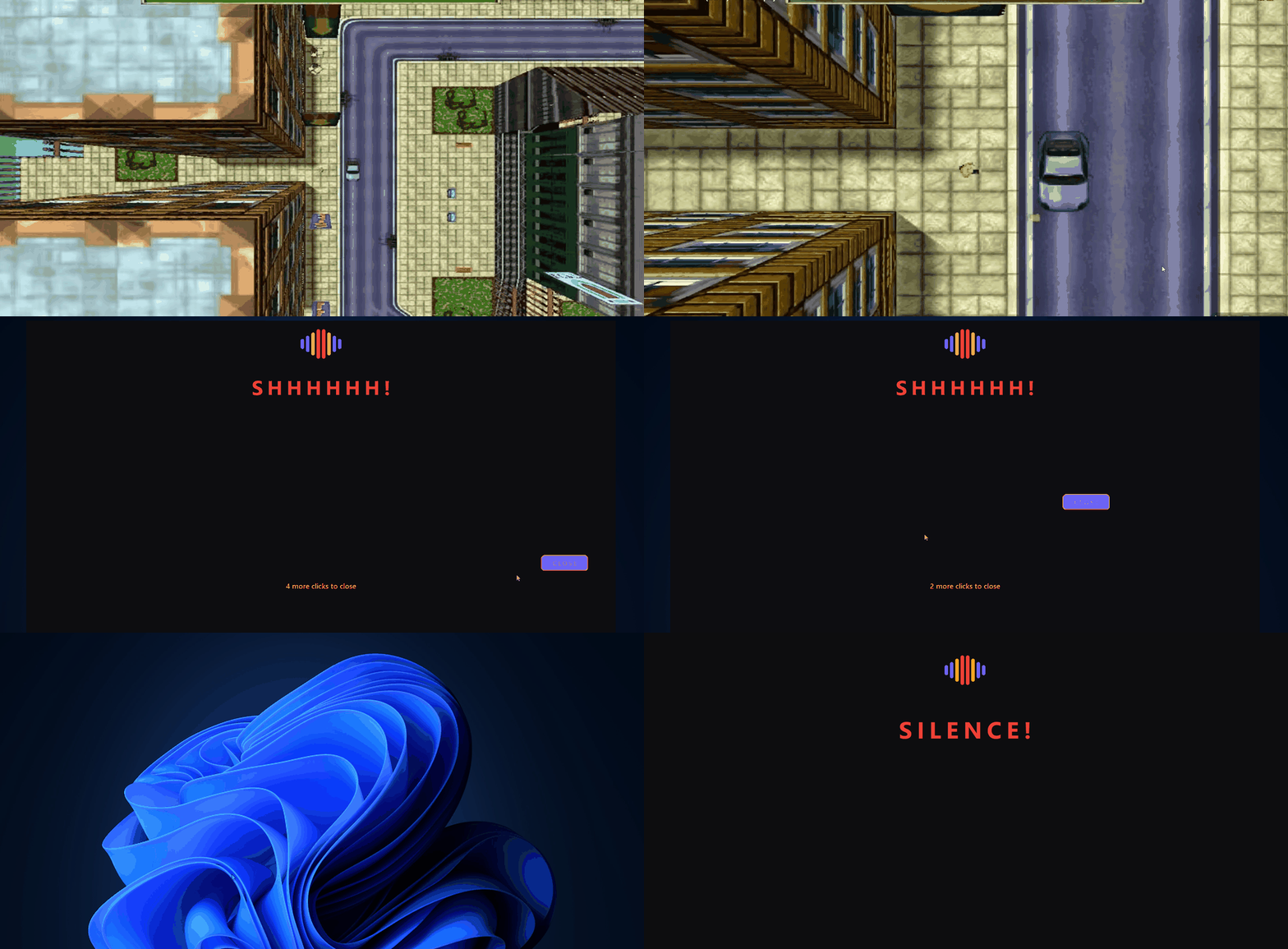
The live meter and the overlay, rendered by the app itself rather than screen-recorded:

A Windows tray app that listens to a microphone and interrupts you when you yell.
Built for a specific problem: someone gaming with headphones on, quiet for an hour, then suddenly shouting loud enough to wake the house. Detection is tuned for short spikes, not sustained volume — the thing that wakes people is the sudden one, not the steady one.
It is deliberately not subtle, and deliberately not hidden. It has a tray icon, it announces what it does on first run, and the person being monitored is meant to know it's there.
It measures how loud the room is in short windows — a few hundredths of a second at a time — many times a second. On first run it asks you to stay quiet, then talk normally, then yell once, and uses that to place a threshold between your voice and your yell. From then on, any window that spikes over that threshold counts as a yell, and it reacts.
| When | What happens |
|---|---|
| First yell of a session | Minimises whatever's in the foreground, plays a random sound effect, and shows a near-fullscreen overlay whose close button jumps to a new random spot after each of four clicks |
| Every later yell that session | Win+D to the desktop, a different sound, and a fullscreen message for 10 seconds |
There's a cooldown after every trigger (10 seconds by default, configurable in Settings), so one long yell can't chain into several punishments. The escalation is session-cumulative and doesn't decay: once you've had the first one, every subsequent yell that evening goes straight to the desktop drop.
Every trigger is logged. A built-in report window shows a chart of when they happened, a table of the detail, and a CSV export.
Exclusive-fullscreen games won't reliably let another window draw on top of them. The only way to guarantee the message is actually seen is to leave the game first. This makes the first strike as disruptive as the second — an accepted trade-off, not an oversight.
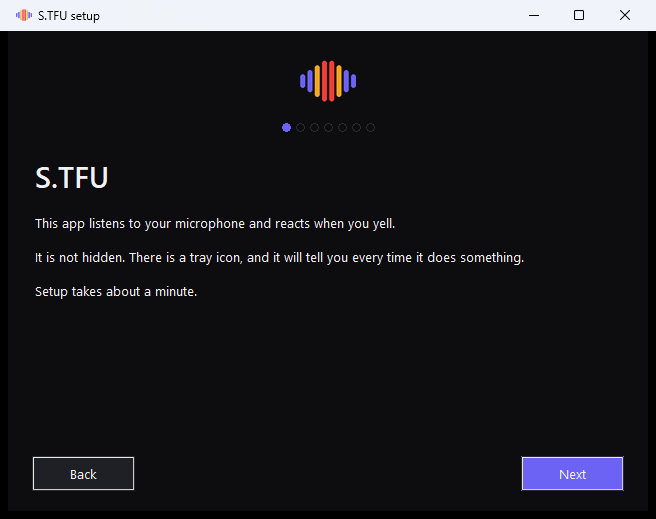 First-run wizard |
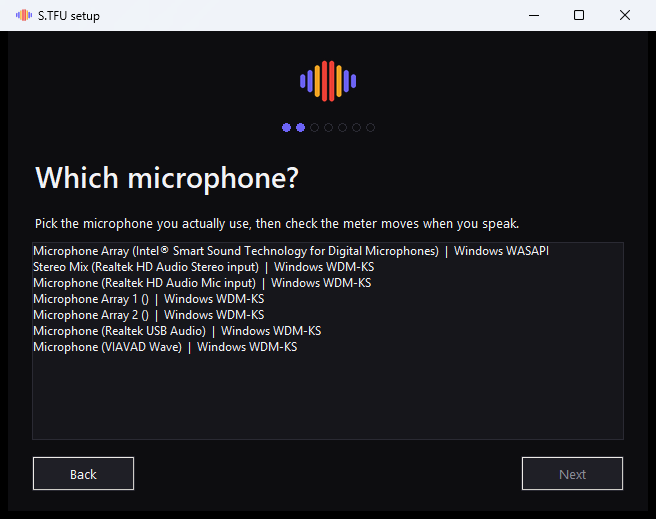 Picking a microphone |
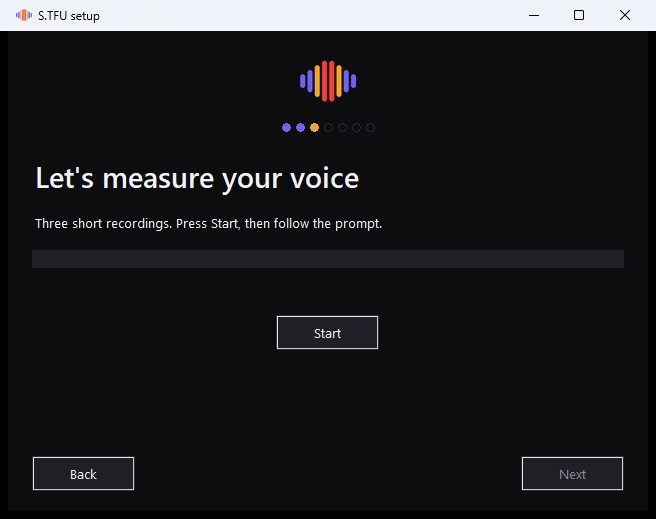 Calibration |
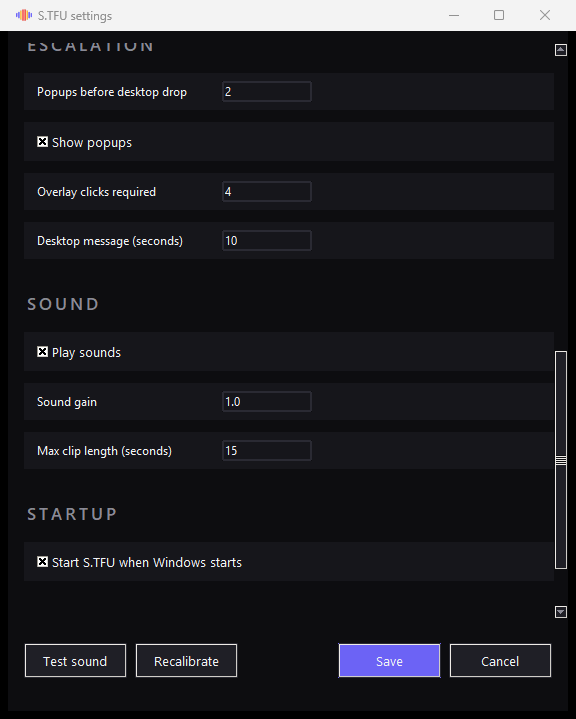 Settings, grouped into sections |
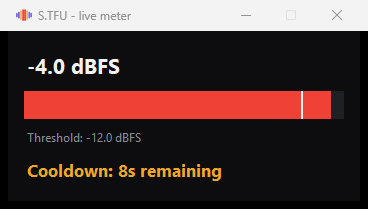 The live meter, over threshold |
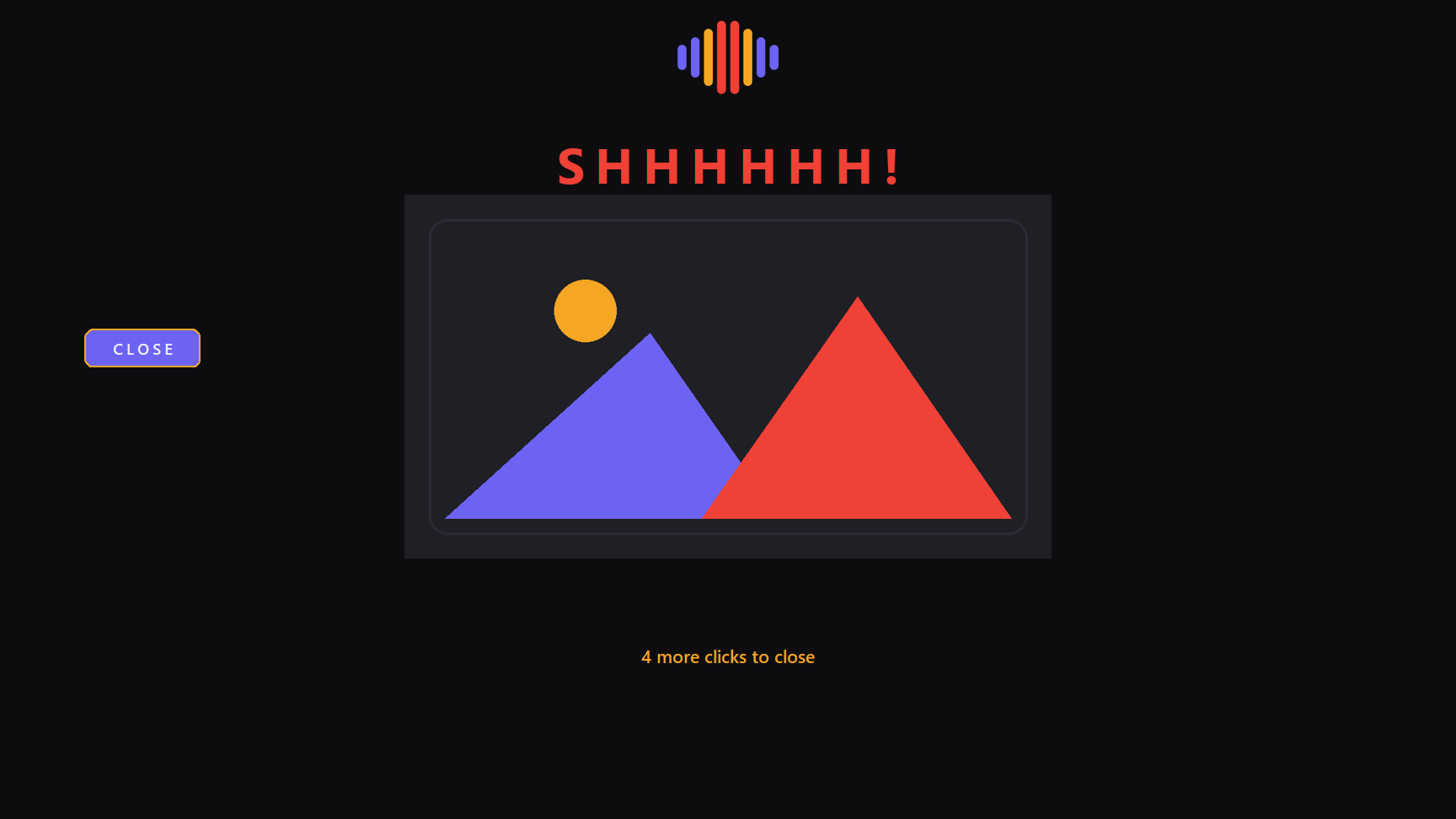 The 4-click overlay |
 The fullscreen message |
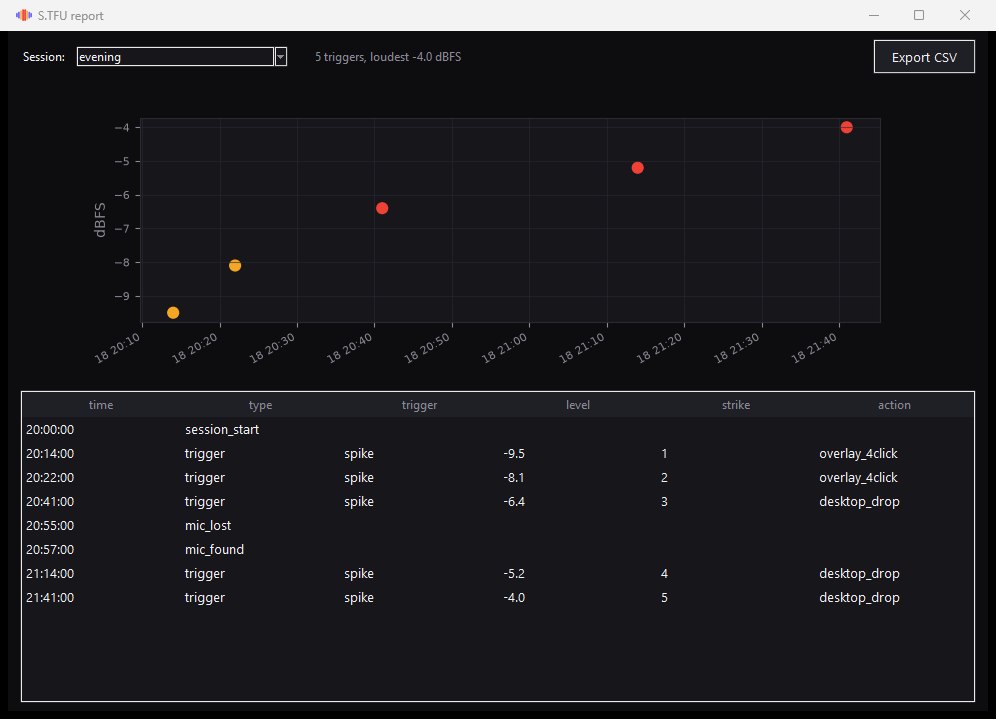 The report window |
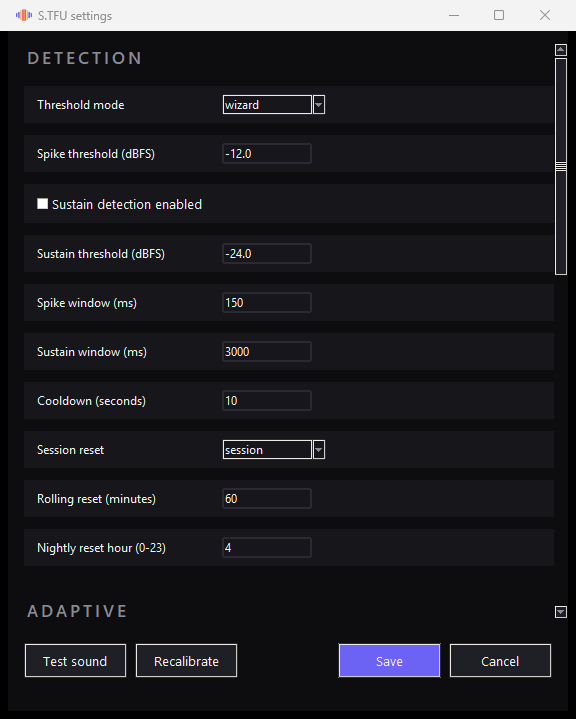 Settings, detection |
The 4-click overlay above shows a placeholder picture (mountains and a sun) so the layout isn't a bare gap — no pictures ship with the app; that slot is empty until you add your own (see Sounds and pictures).
Option A — download the exe. Grab stfu.exe from Releases, copy it anywhere, run it.
Windows SmartScreen will warn you: the binary is not code-signed. Click More info → Run anyway.
The warning comes from the "mark of the web" tag Windows attaches to downloads, not from anything in the file. You can clear it:
Unblock-File .\stfu.exeA copy handed over on a USB stick or a network share never gets tagged in the first place. If none of that satisfies you — reasonably — use Option B and build it yourself.
Option B — build it yourself.
git clone https://github.com/omricn/stfu.git
cd stfu
py -3.12 -m venv .venv
.venv/Scripts/python -m pip install -e ".[dev]"
.venv/Scripts/python -m pytest
powershell -File build.ps1
The exe lands in dist/. Requires Python 3.12 — 3.13+ may not have wheels for every dependency yet.
It asks everything it needs once, then never again:
- Welcome — what it does, and that it isn't hidden
- Microphone — pick the device you actually use; watch the meter move
- Calibrate — be quiet for 10s, talk normally for 10s, then yell once
- Test — try it
- PIN — needed to change settings or close the app
- Sound effects — opens the clips folder
- Autostart — start with Windows (default yes)
The calibration step is the whole ballgame. A yell's level depends on your mic, your room, and your voice — there is no sensible universal number. It measures the gap between your speaking voice and your yell and places the threshold 60% of the way up, biased toward the yell, because a false positive on normal conversation destroys trust in the app far faster than an occasional missed shout.
You can re-run calibration any time from Settings, or from the tray. Detection stands down while a calibration recording is running — otherwise the yell it asks for would trigger the app on top of the dialog — and comes back the moment the run ends, whether it finished, was cancelled, or the microphone refused to open.
Everything lives in %LOCALAPPDATA%\STFU\:
sounds\first\    plays on the first yell of a session
sounds\repeat\   plays on every later one
images\          optional pictures shown in the popups
.wav .mp3 .ogg .flac for audio, .png .gif .jpg .jpeg for pictures.
Drop files in while the app is running — the folders are rescanned on every trigger, so new clips work immediately with no restart. The same clip never plays twice in a row.
The two folders are separate on purpose: put something embarrassing in first\ and something jarring in repeat\, and the escalation is in the sound as well as the window.
No pictures ship with the app. The folder is created empty. Add your own and they appear in both popups, below the text. Leave it empty and you just get text.
Some sound effects are bundled to get you started — see the licence, they are not covered by it and you should replace them before redistributing.
Right-click the tray icon:
Report · Live meter · Open sounds folder · Settings 🔒 · Recalibrate 🔒 · Pause 15 min 🔒 · Exit 🔒
🔒 items ask for the PIN — type it and the dialog closes as soon as it is right, no Enter needed.
Live meter is the one to open when you are wondering whether it is listening at all. It shows the current level, the threshold in force, and the seconds left on the cooldown — because a working cooldown and a dead microphone otherwise look exactly the same from the outside. When the schedule has switched it off, the meter says "Off on schedule" instead of showing a flat bar. The icon is green when listening, amber when paused or sitting out the scheduled off-hours window, grey when the microphone is missing.
Settings exposes every changeable setting — threshold mode and thresholds, detection window lengths, cooldown, session-reset behaviour, the adaptive-mode parameters, overlay clicks, message duration, sound volume and clip length, and autostart.
Two of them are worth knowing about:
- Show popups — off means it detects and logs but never interrupts
- Play sounds — off means silent reactions
Turn both off and you get a log-only mode. Worth running for a night after calibrating: you can check the threshold is catching the right things from the report, before it starts interrupting anyone.
Schedule disables detection entirely between two times, every day. Nothing is detected, logged as a trigger, or reacted to inside the window — the tray icon goes amber and the live meter says so rather than showing a flat bar you could mistake for a dead microphone.
The window wraps midnight, so 22:00–07:00 means overnight. Times accept whatever
you type — 1pm, 13:00, 1:30 PM — and are redisplayed in the format you pick
under Clock format, which also drives the times in the report. An unparseable
time switches the schedule off rather than guessing at a window, on the same
principle as everything else here: a bad setting must never quietly stop it
listening.
Both boundaries are written to the event log, so the report shades the window instead of leaving a gap you have to explain to yourself later.
- Wizard (default) — the fixed number calibration measured
- Manual — set it yourself against a live meter
- Adaptive — tracks the room's baseline and fires relative to it
Adaptive deliberately ratchets downward only: it follows a room that gets quieter, but not one that gets louder, because a threshold that drifts upward eventually stops firing at all. If the room has genuinely changed for good, re-run calibration.
No audio is recorded, transmitted, or stored — ever. The app computes a loudness number from each 20 ms frame and throws the samples away immediately. Nothing is written to disk except event records: a timestamp, a level in dBFS, and which action fired.
There is no network code in this project at all. Nothing leaves the machine.
This app takes over the screen and monitors a microphone. Whoever is being monitored should know it's there and why — which is why the first screen says so plainly, the tray icon is always visible, and the PIN is described as a speed bump rather than a lock.
It works best as something agreed to. Used as a hidden trap, it will be found, resented, and uninstalled — and it isn't built to survive that anyway: anyone with admin rights can end any process.
stfu/
  levels.py      RMS, dBFS, display meter
  config.py      settings, validation, PIN hashing
  clock.py       parsing and formatting wall-clock times
  schedule.py    the off-hours window predicate
  detector.py    spike + sustain rules, three threshold modes, cooldown
  strikes.py     the escalation ladder
  logstore.py    append-only JSONL event log
  audio.py       pinned-device capture (the only module touching hardware)
  engine.py      wires detection to actions and the log
  winapi.py      minimise / show-desktop
  sounds.py      clip library and playback
  images.py      picture library
  overlay.py     the two popup windows
  actions.py     named action registry
  uibridge.py    cross-thread UI marshalling
  ...            first-run wizard, tray, report, settings, packaging
levels, config, detector, strikes, logstore, engine, clock and schedule are pure decision logic with no audio, UI, or Win32 imports — a test enforces that mechanically by inspecting their ASTs. That's why the detection logic is testable without a microphone, and it's most of why there are 598 tests (572 passing, 26 skipped).
See docs/DESIGN.md for why the design is the way it is — the thresholds, the escalation rules, the failure modes, and the trade-offs that were accepted deliberately.
.venv/Scripts/python -m pytestThere is also a headless CLI for tuning without the GUI:
.venv/Scripts/python -m stfu.cli devices
.venv/Scripts/python -m stfu.cli pin "Microphone (Your Headset)" "Windows WASAPI"
.venv/Scripts/python -m stfu.cli monitor --meter
monitor prints what it would do; add --real to actually do it.
There is also an undocumented demo command (python -m stfu.cli demo, not
shown in --help) that waits a few seconds and then fires one real trigger —
the actual overlay or, with --desktop-drop, the actual fullscreen message —
through the real ActionRegistry, with no microphone involved. It exists so a
demo clip doesn't require anyone to actually yell on cue; see its docstring in
stfu/cli.py.
- Unsigned binary — SmartScreen will warn.
Unblock-Fileclears it, or build from source. - Exclusive-fullscreen games — handled by minimising first, but behaviour varies by title. Worth testing with yours.
- DPI scaling — the overlay is laid out relative to screen size; heavily scaled displays are less tested.
- Windows only —
winreg, Win32 minimise/show-desktop, and WASAPI capture are all Windows-specific.
Run uninstall.bat (shipped alongside the exe, and readable — it's a plain batch file, not a compiled installer). It stops the app, removes the start-with-Windows entry, and deletes %LOCALAPPDATA%\STFU, after copying your event log to the Desktop first.
Then delete stfu.exe yourself. That's everything — the app writes nothing anywhere else.
MIT for the code. The bundled sound effects are not covered — see LICENSE.