An unofficial, super fast, super sussy replacement for the Unity layer of Oxygen Not Included, artisanally crafted by Claude. On a late-game colony the game runs at up to 13× the original's frame rate (Performance).

I did this mostly for fun, to see how far Oxygen Not Included's performance can go on a modern .NET runtime (CoreCLR). I've had the idea for a while, but none of the existing C# renderers sparked joy. When BRUTAL went open source, it seemed like a good excuse to try a sexy new toy.
Moono runs Klei's original DLLs, patched at load where Mono and .NET differ. Everything they need from Unity is reimplemented here.
You need your own copy of the game on Steam, on Linux or Windows (no macOS). Epic Games Store and WeGame (China) are not currently supported.
Moono replaces the engine instead of patching the game, so it can't ship as an ordinary Harmony mod. The Workshop item or a setup script hooks it into the game's Steam launch options, and you still start the game from Steam as usual.
Subscribe to Moono on the Steam Workshop and start the game from Steam. Click Install & copy launch option when Moono asks, paste the line into Oxygen Not Included's Launch Options in Steam, then quit and press Play. Moono then updates itself with the Workshop item.
-
Download the latest release from the releases page:
oni-moono-…-windows-x64.ziporoni-moono-…-linux-x64.tar.gz, and extract it anywhere. (Or clone this repository; the setup then builds the player itself, installing the .NET SDK for your user if you don't have it.) Releases are for the game's current update, U60; for U59, use 2026.11.19.03. -
Run the setup script in the extracted
oni-moonofolder:- Windows: double-click
setup.cmd(it runssetup.ps1and keeps the window open) - Linux:
./setup.sh
It finds your Oxygen Not Included install through Steam, prints one line for the game's launch options, and puts it on your clipboard where it can.
- Windows: double-click
-
In Steam, right-click Oxygen Not Included → Properties → Launch Options, and paste that line.
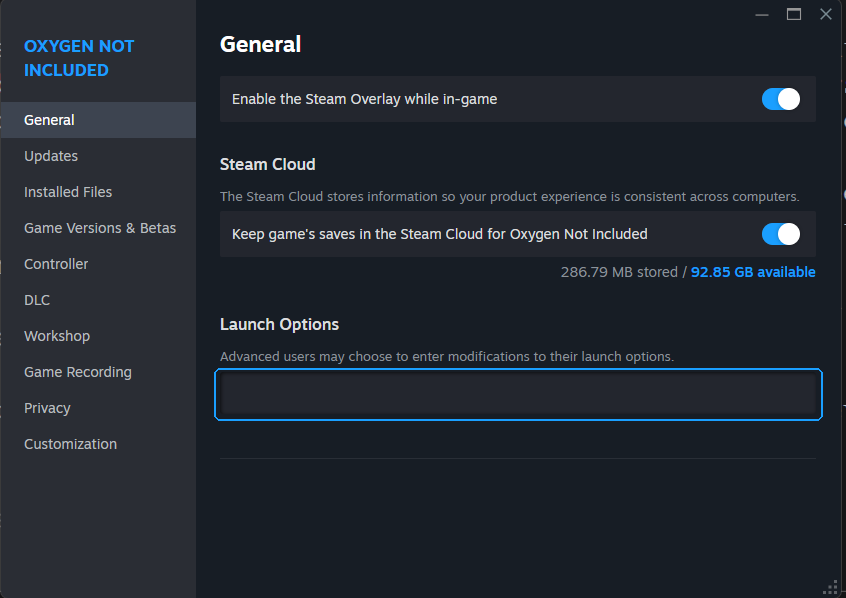
Then press Play in Steam as usual.
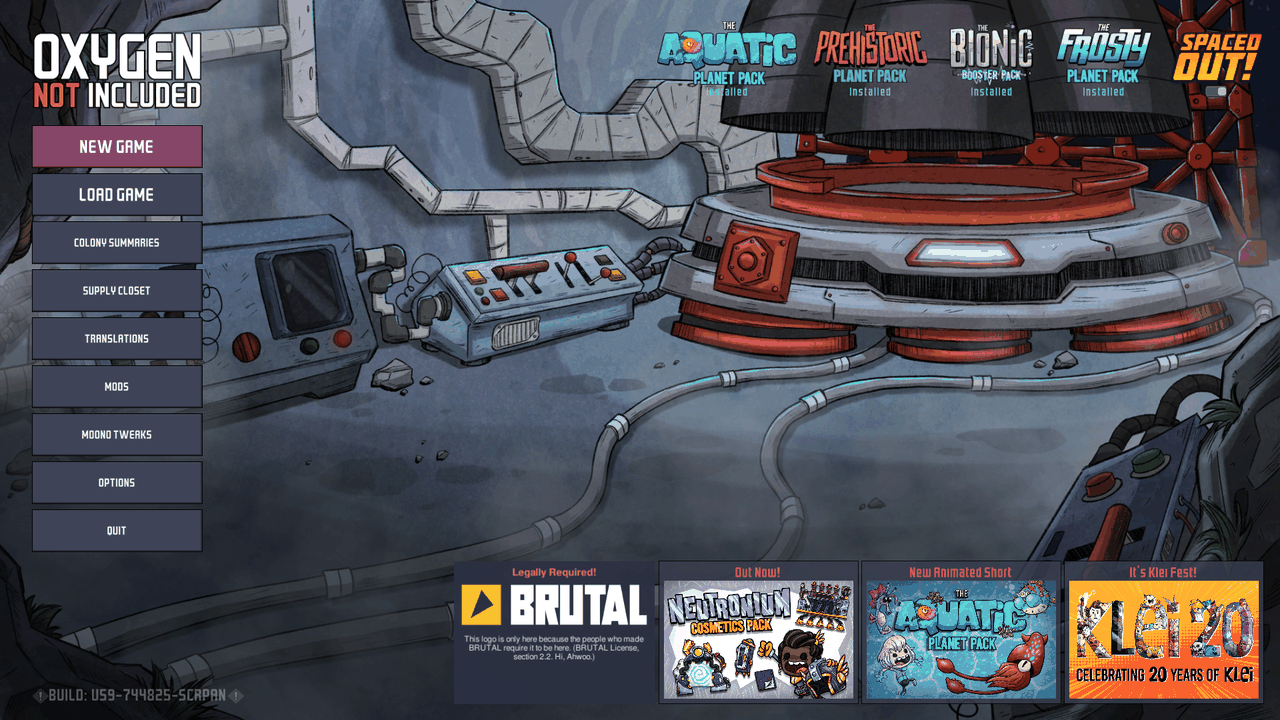
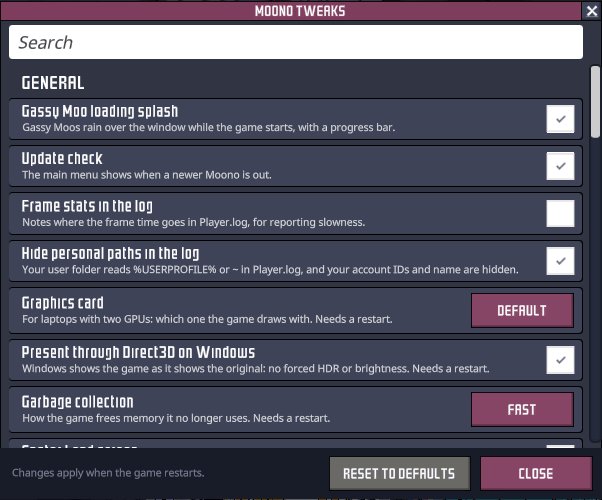
- Tweaks: choose the optional tweaks (below) in the game, in Moono Tweaks on the main menu, under Mods.
- Updating: get the new version and run the setup again. The launch options and your tweak choices stay the same.
- Going back: clear the launch options to return to the original game.
On Linux, Steam installed as a Flatpak or a snap runs games in a sandbox that can't see most of your home folder. The setup notices and installs the player inside the sandbox's folder. Snap is tested, Flatpak isn't yet.
You'll need a Vulkan 1.3 graphics driver, or OpenGL 4.5 as the fallback. The game uses your normal Steam account, DLCs, saves, settings and mods.
The setup script above is the easiest installation on most systems. Follow these manual steps if you want more control, need to customize the installation, or run a sandboxed environment and prefer not to run a script outside it. They don't cover building the player from scratch. For the build steps, see the setup scripts or docs/DEVELOPMENT.md.
Linux
The example paths match those used by setup.sh, with ~/Downloads/oni-moono/ as the location
of the downloaded and extracted files. You can choose different paths, but update them
consistently in the commands and Steam launch options below.
-
Locate the game folder. It must contain
OxygenNotIncludedandOxygenNotIncluded_Data/Managed. Common Steam library locations include:- Default Steam:
~/.steam/steam/steamapps/common/OxygenNotIncludedor~/.local/share/Steam/steamapps/common/OxygenNotIncluded - Snap Steam:
~/snap/steam/common/.local/share/Steam/steamapps/common/OxygenNotIncluded - Flatpak Steam:
~/.var/app/com.valvesoftware.Steam/.local/share/Steam/steamapps/common/OxygenNotIncluded
If the game is in another Steam library, use that library's
steamapps/common/OxygenNotIncludedfolder instead. Confirm thatOxygenNotIncludedis the Linux executable; a Windows installation via compatibility tools (Proton) will not work. - Default Steam:
-
Place the player where Steam can access it. In the downloaded archive, the
playerfolder should contain theOniMoonoexecutable and its accompanying files.(The
rm -rfcommands in the following examples remove a previousplayerfolder, in case you are updating. Check the path before running them, or use your file manager instead.)For a regular Steam installation, you can leave the
playerfolder where you extracted the archive (setup.shdoes so), or copy it somewhere convenient:# Default Steam mkdir -p "$HOME/.local/bin/oni-moono" rm -rf "$HOME/.local/bin/oni-moono/player" cp -rp "$HOME/Downloads/oni-moono/player" "$HOME/.local/bin/oni-moono/player"
Snap and Flatpak Steam run in sandboxes and may not be able to access files elsewhere in your home folder. Copy the player into Steam's sandbox-visible location:
# Snap Steam
mkdir -p "$HOME/snap/steam/common/oni-moono"
rm -rf "$HOME/snap/steam/common/oni-moono/player"
cp -rp "$HOME/Downloads/oni-moono/player" "$HOME/snap/steam/common/oni-moono/player"
# Flatpak Steam
mkdir -p "$HOME/.var/app/com.valvesoftware.Steam/data/oni-moono"
rm -rf "$HOME/.var/app/com.valvesoftware.Steam/data/oni-moono/player"
cp -rp "$HOME/Downloads/oni-moono/player" \
  "$HOME/.var/app/com.valvesoftware.Steam/data/oni-moono/player"
-
Check the executable bit. The player binary
OniMoonomust be executable. Set it if needed, using the path where you placed the player:chmod +x "$HOME/.local/bin/oni-moono/player/OniMoono"For Snap or Flatpak, use the corresponding paths above. Check that the file exists and is executable with
ls -l. -
Set Steam's launch options. In Steam, right-click Oxygen Not Included → Properties → Launch Options. Enter one line, replacing the example path with the full path to your player:
"/home/your-username/.local/bin/oni-moono/player/OniMoono" -- %command%For Snap, the executable path is typically:
"/home/your-username/snap/steam/common/oni-moono/player/OniMoono" -- %command%For Flatpak, it is typically:
"/home/your-username/.var/app/com.valvesoftware.Steam/data/oni-moono/player/OniMoono" -- %command%Replace
/home/your-usernamewith your actual home folder path. Do not use a literal~or$HOMEin the launch options. Keep the quotes around the executable path, especially if it contains spaces.
Press Play in Steam. If the game does not start, check that the launch options path matches the
player's actual location, OniMoono has its execute bit set, and the game folder contains the
Linux build. If that doesn't help, launch Steam from a terminal and watch the output for a hint
after clicking Play.
For updates, download the new release archive and repeat the steps, replacing the player folder.
To remove Moono and return to the original game, remove the player folder from where you put
it, and clear the launch options in Steam.
Windows
-
Place the player. In the downloaded archive, the
playerfolder containsOniMoono.exeand its accompanying files. Copy it to%LOCALAPPDATA%\oni-moono\player, the locationsetup.ps1uses (paste%LOCALAPPDATA%into Explorer's address bar to open it). You can choose a different folder, but with this one, running the setup later keeps the same launch options. In case you are updating, remove the previousplayerfolder first. -
Set Steam's launch options. In Steam, right-click Oxygen Not Included → Properties → Launch Options. Enter one line, replacing the example path with the full path to your player:
"C:\Users\your-username\AppData\Local\oni-moono\player\OniMoono.exe" -- %command%Replace
C:\Users\your-usernamewith your actual user folder path. Do not use%LOCALAPPDATA%in the launch options. Keep the quotes around the executable path.
Press Play in Steam. If the game does not start, check that the launch options path matches the player's actual location.
For updates, download the new release archive and repeat the steps, replacing the player folder.
To remove Moono and return to the original game, remove the player folder, and clear the launch
options in Steam.
Moono runs the same game code 3–4.5× faster before any tweaks, and up to 13× faster with them. Three things do it:
- An engine built around how ONI uses it. The game makes over a million small engine calls every frame: looking up an object's position, its components, or whether it still exists. Moono answers these calls about 15× faster than Unity.
- CoreCLR instead of the very garbage Mono runtime that Unity ships. Memory handling and the built-in libraries take about a fifth of the time.
- Over 40 tweaks that replace slow parts of the game's code. Most give exactly the same results; a few differ in ways you won't see.
On a late-game Spaced Out colony with every DLC (cycle 17,000+), on Windows, on the same machine, back to back, with every Moono tweak on:
| Original | Moono | ||
|---|---|---|---|
| Frame rate at speed 3 | about 11 fps | about 144 fps | about 13× |
| Loading the save | 2 min 22 s | about 25 s | about 5.5× faster |
| Autosave freeze | about 26 s | about 2.2 s | about 12× shorter |
| Starting the game, to the main menu (every DLC, second launch) | about 17.4 s | about 10.3 s | about 1.7× faster |
How much faster it runs depends on your hardware. Moono removes the runtime's overhead, so the faster your CPU, the more of the gain you see. On slower machines, you'll get bottlenecked by other things sooner: running out of memory, or the game's C++ simulation itself, which Moono doesn't speed up (particularly on very large custom maps).
Garbage-collection hitches are mostly gone: collections now run in the background, spread across every core, and their pauses are about a quarter as long.
Note: This uses more memory compared to the original. On a mid-game colony, memory peaked at around 11 GB resident compared to 7 GB in the original. This is expected behavior for faster, parallel collection.
The late-game colony at speed 3: about 11 fps in the original, about 136 in Moono.
moono-readme-1-late-game.mp4
Starting the game to the main menu, every DLC, second launch: 17.5 s in the original, 9.8 s in Moono.
moono-readme-2-startup.mp4
An autosave on the late-game colony: the original freezes for about 25 s, Moono for about 2.1 s.
moono-readme-3-autosave.mp4
The temperature overlay on the late-game colony, panning: about 7 fps in the original, about 57 in Moono.
moono-readme-4-temperature-overlay.mp4
A mid-game colony at speed 3: about 28 fps in the original, about 126 in Moono.
moono-readme-5-mid-game.mp4
For a more detailed breakdown, see docs/PERFORMANCE.md.
Moono also speeds up some of the game's code. Most tweaks don't change gameplay and are on by default; five do, and are off. Toggle them in Moono Tweaks on the main menu. Full list: docs/TWEAKS.md.
Saves from the original game should load, and saves made here should still load in the
original game (including ones written with the fast-save-compression tweak).
Saves come out about 14% larger: the fast-save-compression tweak compresses them faster but a
little less tightly, which takes seconds off every save.
Most mods should work, since the game's code and its Harmony load as shipped. See docs/MOD_COMPATIBILITY.md for what has been tested. If a mod breaks, file an issue with your log.
Possibly. In the age of agents the initial prototype took about 5 days, so it isn't the insurmountable task it might once have looked like.
However, most of the wins come from CoreCLR itself, which Unity 7's CoreCLR move should bring to the original game too, eventually (it's been in Soon™ territory for years).
This also rebuilds only what the game needs to run. Everything that Klei's development workflow needs from Unity would be lost:
- the editor
- Unity's shader tooling
- the asset bundle build pipeline
- profiling and debugging tools
- no macOS support yet
- the general, accumulated knowledge of how Unity behaves
So I'd only seriously look at something like this if Unity 7's CoreCLR runtime can't get close to the same numbers.
The optional tweaks are a different story. They are potential optimizations that probably also apply to the original game. I haven't measured them there, though, and their gains could differ on Mono. The engine-side wins are probably not possible to port to the original game, as it would require building Unity from source.
Feel free to slop. See docs/DEVELOPMENT.md.
File an issue, and please attach your log and the save you were playing.
The log is Player.log in:
- Windows:
%USERPROFILE%\AppData\LocalLow\Klei\Oxygen Not Included\ - Linux:
~/.config/unity3d/Klei/Oxygen Not Included/
Saves are .sav files in a folder named after the colony, under:
- Windows:
Documents\Klei\OxygenNotIncluded\cloud_save_files\<your Steam ID>\(orsave_files\for saves kept off Steam Cloud) - Linux:
~/.config/unity3d/Klei/Oxygen Not Included/cloud_save_files/<your Steam ID>/(orsave_files/)
With Steam installed as a snap on Linux, both folders are under ~/snap/steam/common/ instead
of ~. With Flatpak Steam, ~/.config/ becomes ~/.var/app/com.valvesoftware.Steam/config/.
All rights reserved.
Built on BRUTAL, Copyright (c) 2024 Ahwoo Limited. Oxygen Not Included is © Klei Entertainment. Moono is unofficial, and not affiliated with or endorsed by Klei Entertainment, Unity Technologies, or the Mono project.
Moono is written without Unity's source code: no Unity C# reference source, decompiled Unity assemblies or disassembled engine binaries are used. Unity's UI packages (uGUI, TextMeshPro, Timeline) are reimplemented clean-room: their behaviour is measured from the outside, written up as specs in docs/cleanroom, and implemented from those specs. Code from open-source projects (Mono, Mesa, SGI's GLU) is used under their licences; see NOTICE.txt and docs/LICENSING.md.
The releases are not signed, so to Windows every new one is an unknown program from the internet. Extracting it or running setup may hold things up for a cloud antivirus scan, or show "Windows protected your PC" (click More info → Run anyway). That's okay and expected for sussy software like this. To skip most of it, right-click the downloaded zip → Properties → tick Unblock before extracting.