

Your Mac's lock screen can show beautiful slow-motion Aerial videos of landscapes and cities. AerialSwap lets you put your own videos there: a holiday clip, a drone flight, or one of thousands of free videos it finds for you. They play exactly like Apple's Aerials, on the lock screen and the desktop, and gently slow down when you unlock.
Your videos get their own AerialSwap group in System Settings → Wallpaper, right next to Apple's. Apple's own Aerials stay untouched.

- Use any video. Drag a video onto the window, paste a link, pick a free video inside the app, or use a video wallpaper you subscribed to in Wallpaper Engine.
- Pick the best part. Trim the video to the few seconds you like.
- No jump when it repeats. AerialSwap blends the end into the beginning, so the loop looks seamless.
- Smooth slow-down. It adds in-between frames, so the video glides to a stop when you unlock, like Apple's.
- Switch in seconds. Every wallpaper you make is kept in your library, ready to use again.
- Nothing running in the background. macOS plays the videos itself, just like its own Aerials.
You need a Mac with Apple Silicon (M1 or later) and macOS 27.
-
Download
AerialSwap-2.0.zipfrom the latest release and double-click it to unzip. -
Move
AerialSwapinto your Applications folder. -
Open it. The first time, macOS shows a warning, because AerialSwap is a free app from an independent developer and isn't registered with Apple. To open it anyway:
- Click Done in the warning.
- Open System Settings → Privacy & Security and scroll down.
- Next to "AerialSwap was blocked", click Open Anyway, then confirm with your password.
You only need to do this once.
-
Haven't used an Aerial yet? Open System Settings → Wallpaper, pick any of Apple's Aerials once, then come back to AerialSwap. That way macOS sets up what AerialSwap needs.
Drag a video file anywhere onto the AerialSwap window, or click Add Video. You can also add a video from a link (Add Video → From URL…), or find a free one under Discover (see below). For a playlist, a Pinterest board or a channel, switch the dialog to Playlist or Board: you see its videos and pick one.
Own Wallpaper Engine on Steam? Under Discover → Workshop you can browse its video wallpapers and click Download with Steam: your own Steam for Mac downloads it, no Windows needed. Add Video → From Wallpaper Engine… shows the video wallpapers your Steam already downloaded (also from CrossOver or Whisky). AerialSwap never sees your Steam login, and it can't use scene or web wallpapers. Once a wallpaper is in your library, AerialSwap removes the copy Steam downloaded for it (turn this off in Settings → Workshop); wallpapers you subscribed to in the Workshop yourself are never touched. If AerialSwap had to start Steam, it quits Steam again when you quit AerialSwap, so Steam doesn't keep using power in the background.
Downloading this way isn't an official Wallpaper Engine or Steam feature: AerialSwap asks your Steam app the way Wallpaper Engine itself does, and Steam shows you as playing Wallpaper Engine meanwhile. To keep it to normal use, AerialSwap checks that your account owns Wallpaper Engine, reuses wallpapers Steam already downloaded, and allows at most 10 downloads an hour and 30 a day. If Valve or Wallpaper Engine's developer object, downloads can be paused for everyone without an update. You use it at your own risk. The details and the risks are in TECHNICAL.md.
Any length works. Videos in 4K, filmed in landscape (wider than tall) with slow camera movement, look best.
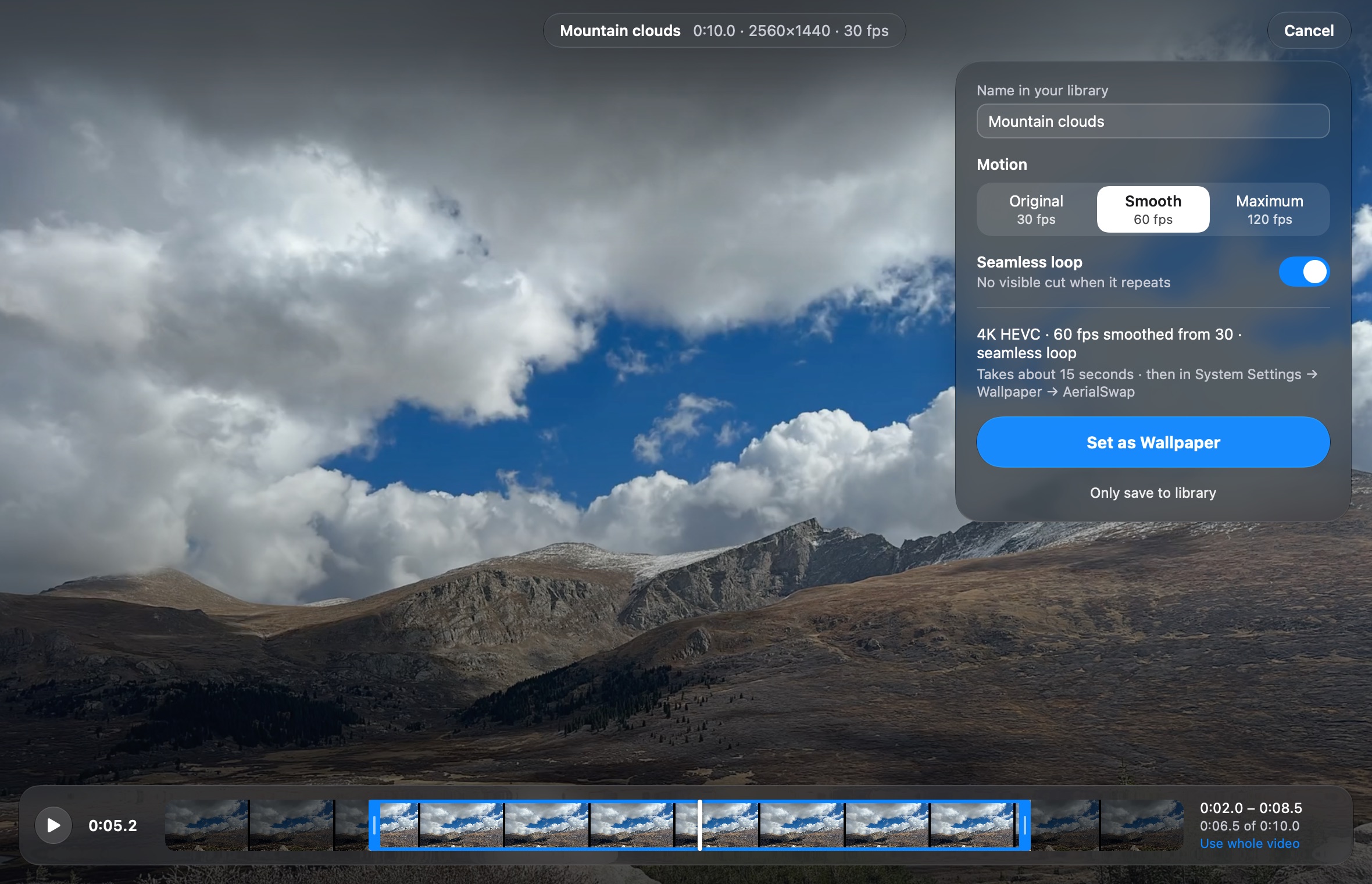
- Trim: drag the blue handles on the bar at the bottom. The preview plays only the part you picked.
- Name: this is what the wallpaper is called in your library and in System Settings.
- Motion: Smooth (recommended) adds in-between frames for a fluid slow-down when you unlock.
- Seamless loop: blends the end into the start, so you never see a cut.
- Enhance detail (for smaller videos): uses your Mac's built-in AI upscaling to make them sharper. It takes much longer, and the result varies from video to video.
Click Set as Wallpaper. AerialSwap prepares the video in 4K. A short clip usually takes a minute or two, and you'll see the progress. Then it switches your desktop and screen saver to the new video.

Lock your Mac to see it. You'll also find it in System Settings → Wallpaper → AerialSwap.
Everything you've made stays in Your wallpapers on the right. Click one to preview it, then click Set as Wallpaper: switching takes only a few seconds. Right-click a wallpaper to use it only for the desktop or only for the screen saver, or to delete it.
Click on the video itself to hide the library and see the wallpaper the way your lock screen will show it.
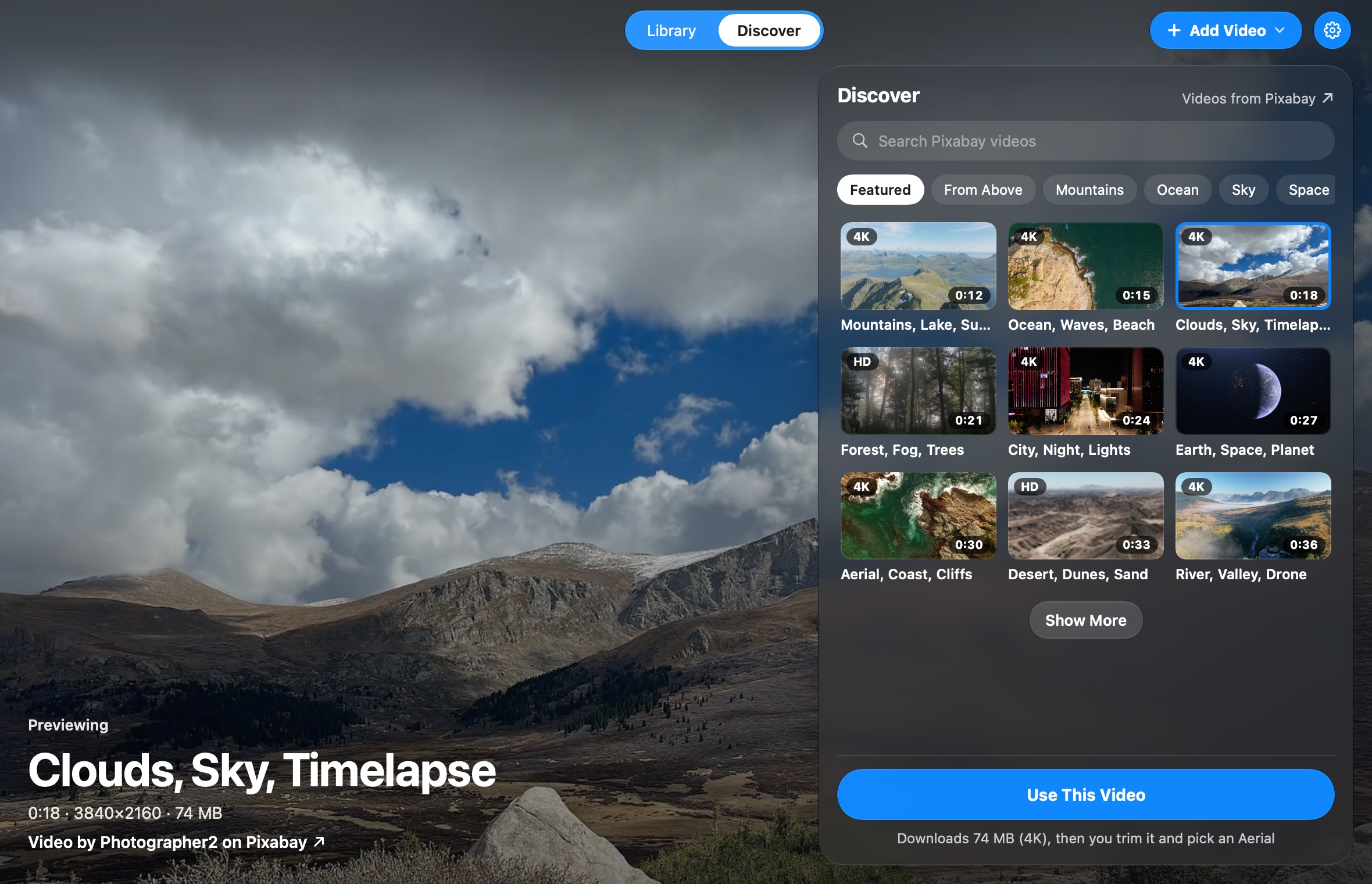
Click Discover at the top to browse thousands of free, high-quality videos from Pixabay. Pick a topic or search for anything, click a video to preview it, then Use This Video. AerialSwap downloads it in 4K in the background (keep browsing meanwhile; the top bar shows the progress) and takes you to step 2. The menu at the end of the topics sorts (Popular, Newest) and filters (resolution, Pixabay's categories, hide videos already in your library); videos you already have say In Library.
Press ⌘, (or click the ⚙ button, then Settings…) to choose:
- General: whether AerialSwap checks for updates once a day, and how much space its temporary files and caches take (Delete… frees it after asking; your library isn't touched).
- New Wallpapers: what a new video starts with: Motion, Seamless loop and Enhance detail.
- Workshop: start Steam as soon as you open the Workshop (so downloads start sooner), quit Steam with AerialSwap if AerialSwap started it, remove Steam's copy after saving, and when small previews are upscaled with Apple's ML upscaler (always, only when plugged in, or never).
Is it safe? AerialSwap only adds its own videos to the list of Aerials. It never changes or deletes Apple's videos and never asks for your password. It's free and open source, so anyone can check the code.
Does it slow down my Mac or drain the battery? No. Once a wallpaper is set, AerialSwap doesn't need to run. macOS plays the video exactly like its own Aerials. Preparing a new video takes some computing power for a minute or two.
My AerialSwap wallpapers disappeared from System Settings. macOS sometimes downloads a new list of Aerials and removes the group. AerialSwap adds it back automatically within seconds. If it doesn't, just open AerialSwap once.
Will it keep working after macOS updates? Usually yes, but AerialSwap uses parts of macOS that Apple doesn't officially offer to other apps, so a big update can break it until a new version comes out. Your library always keeps your videos.
How do I get updates? AerialSwap checks once a day and tells you when a new version is out (you can turn that off in Settings). Click the ⚙ button in the top right, then Update to AerialSwap …: it downloads the update, checks that it really comes from AerialSwap, installs it and restarts.
Does it play sound? No. Wallpapers are silent, just like Apple's Aerials.
Can I use any video I find online? Only use videos you're allowed to use: your own, or free ones like those in Discover.
Something went wrong. Click the ⚙ button in the top right, then Open Log, and attach the log when you report the problem.
-
Quit AerialSwap.
-
Open the Terminal app, paste this line and press Return. It removes the AerialSwap group from System Settings and puts Apple's list back the way it was:
/Applications/AerialSwap.app/Contents/MacOS/AerialSwap --remove-group
-
Move AerialSwap from your Applications folder to the Trash.
Your wallpapers stay in ~/Library/Application Support/AerialSwap/ in case you come back. To remove everything,
delete that folder too, plus ~/Library/Caches/AerialSwap and ~/Library/Logs/AerialSwap.log. Deleted the app
first? See Removing the group without the app.
Building from source, every option in detail, how AerialSwap works inside macOS, tests and releases: see docs/TECHNICAL.md.
AerialSwap is free and open source under the MIT license, see LICENSE. Tools and services it can use
keep their own licenses and terms, see THIRD_PARTY_NOTICES.md.
AerialSwap is an independent app and isn't made by or affiliated with Apple. The videos in the screenshots are free videos from Pixabay by u_flivu11rsh, JoshuaWoroniecki, adege, mariancroitoru, D-GM, Kanenori, bellergy, vkhima, antonlukin and videohive. The names and details shown in the screenshots are examples.