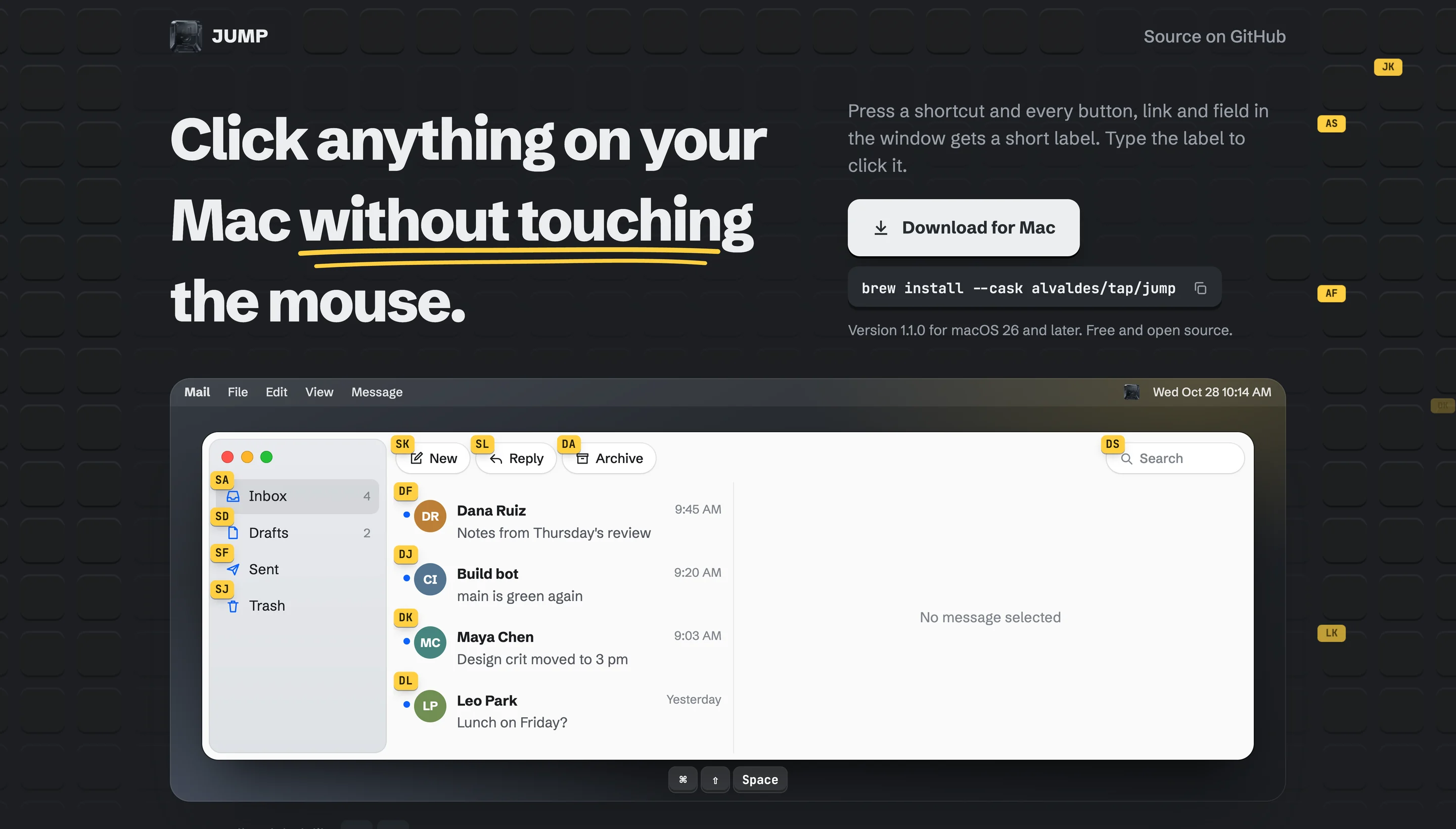
Keyboard-driven screen navigation for macOS. Press a shortcut, every clickable element gets a short label, type the label to click it. No mouse required.


Status: v1.2.0 (not yet notarized). See
my-idea.mdfor the design spec and roadmap.
JUMP needs macOS 26 or later.
-
Download JUMP.dmg, open it and drag JUMP to Applications. Or install it with Homebrew:
brew install --cask alvaldes/tap/jump
-
Open JUMP from Applications. JUMP isn't notarized by Apple yet, so macOS stops it the first time: choose Done, then open System Settings → Privacy & Security and click Open Anyway next to “JUMP.app” was blocked. The step-by-step guide has screenshots.
-
Allow JUMP in Accessibility when it asks (System Settings → Privacy & Security → Accessibility).
-
Press ⌘⇧Space in any window.
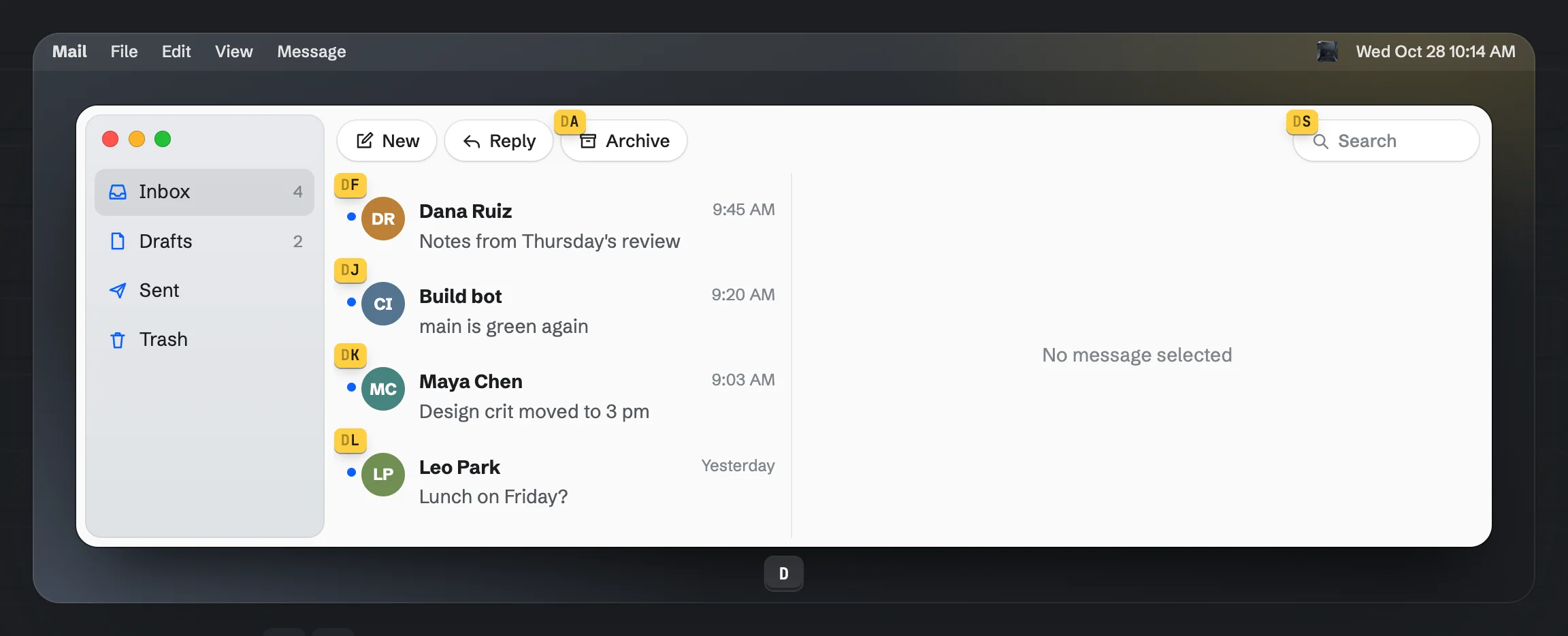
Each key narrows the labels. After D, only the six that start with D are left, and the next key clicks one. The website has this demo running live.
| Shortcut | Mode | What it does |
|---|---|---|
| ⌘⇧Space | Hints | Labels every clickable element of the focused window. Type a label to click it. |
| ⌘⇧J | Scroll | Scrolls the focused window without the mouse: h j k l, d u, gg G, Tab to change area, Esc to leave. |
| ⌘⇧F | Text search | Finds visible text in the focused window. Tab / Shift-Tab move between matches, Return jumps, Esc leaves. |
All three shortcuts can be changed in Settings. Inside any mode, ⌘, leaves it and opens Settings. Apps listed under Excluded apps (Settings, Shortcuts) keep those keys: JUMP's shortcuts stay off while one of them is in front.
- Actions with modifiers. Holding a modifier while typing a label (or pressing
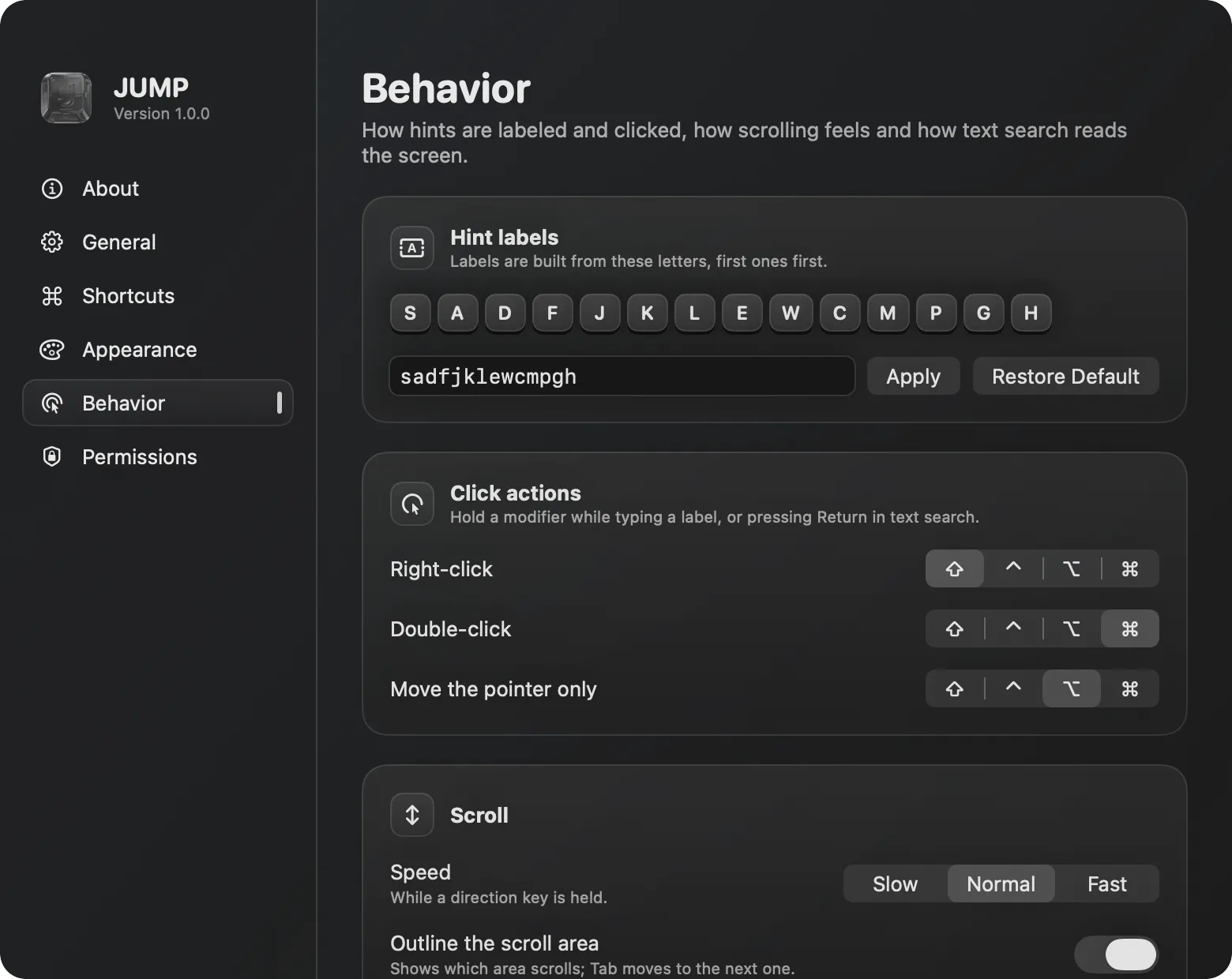
Returnin text search) chooses the action: none clicks (or places the caret in a text field),Shiftright-clicks,⌘double-clicks,⌥only moves the pointer. Each action's modifier (Shift,⌃,⌥or⌘) can be changed in Settings, Behavior. Clicks wait until the modifier is released, so apps never see it. - Text search reads text through Accessibility. Matching ignores case and accents, and only counts what is on screen.
- OCR fallback (optional). For windows without usable Accessibility text (terminals, PDFs, images), JUMP can recognize text on screen. It is off by default and needs the Screen Recording permission, requested only when you turn it on. Captures never leave memory.
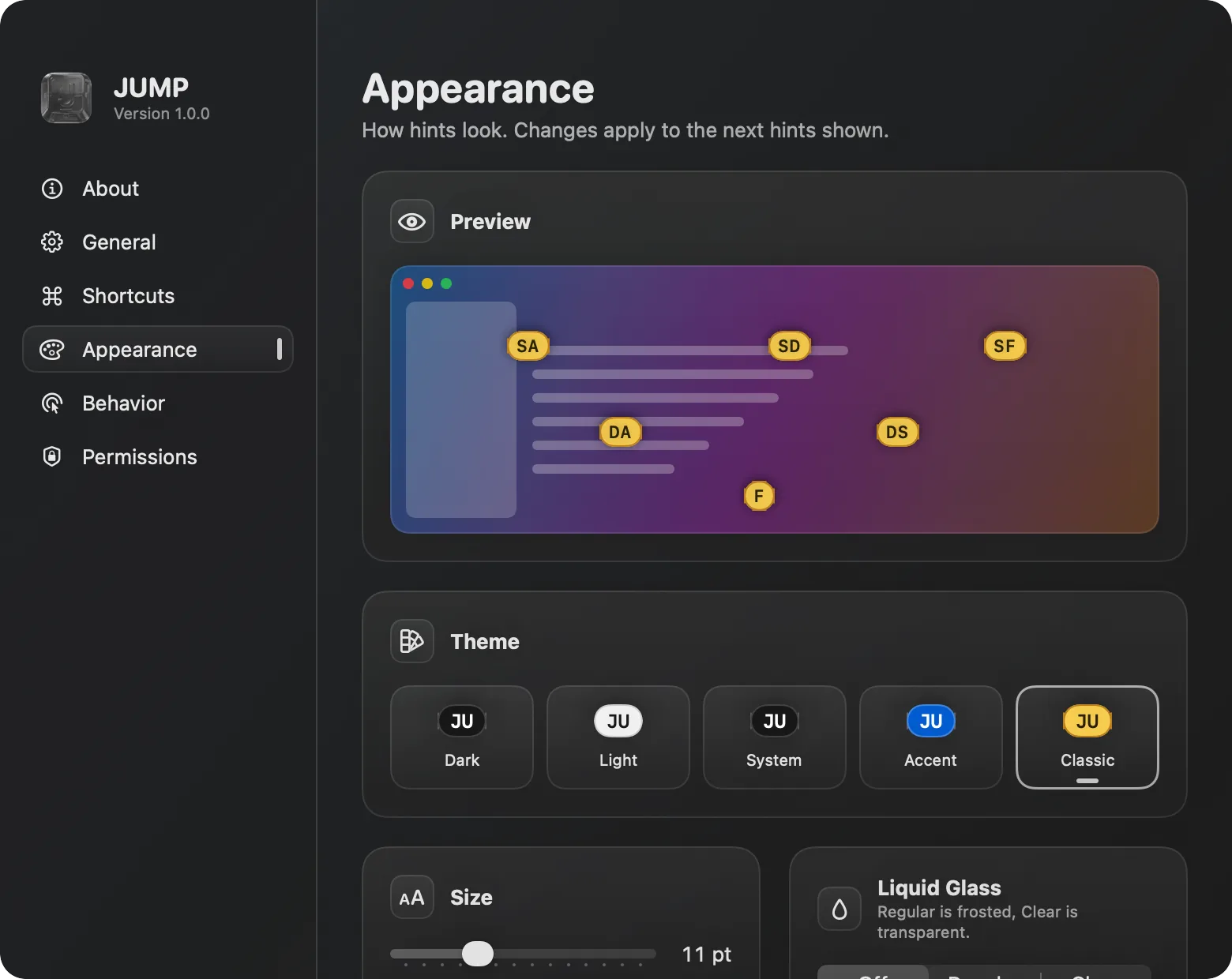
- Appearance. Five hint themes (Dark, Light, System, Accent, Classic) with readable contrast, label size from 7 to 20 pt, upper or lower case labels, and Liquid Glass (Off, Regular, Clear). Scroll speed (Slow, Normal, Fast) and the scroll area outline can be changed in Behavior.
- App. Three menu bar icons, optional Dock icon (official or glyph), launch at login.
- Update notices. JUMP asks GitHub for the latest release (every day by default; every 6 hours, every week or off in Settings, General). When a new version is out, the menu bar menu offers to download it, and Settings marks the version as outdated and lists what's new. It doesn't install anything itself: Homebrew users run
brew upgrade --cask jump, everyone else downloads the new DMG. - Leaves the mode when focus moves, whether by mouse, ⌘-Tab, ⌘` or a window manager such as AeroSpace.
| Appearance | Behavior |
|---|---|
 |
 |
| General | Permissions |
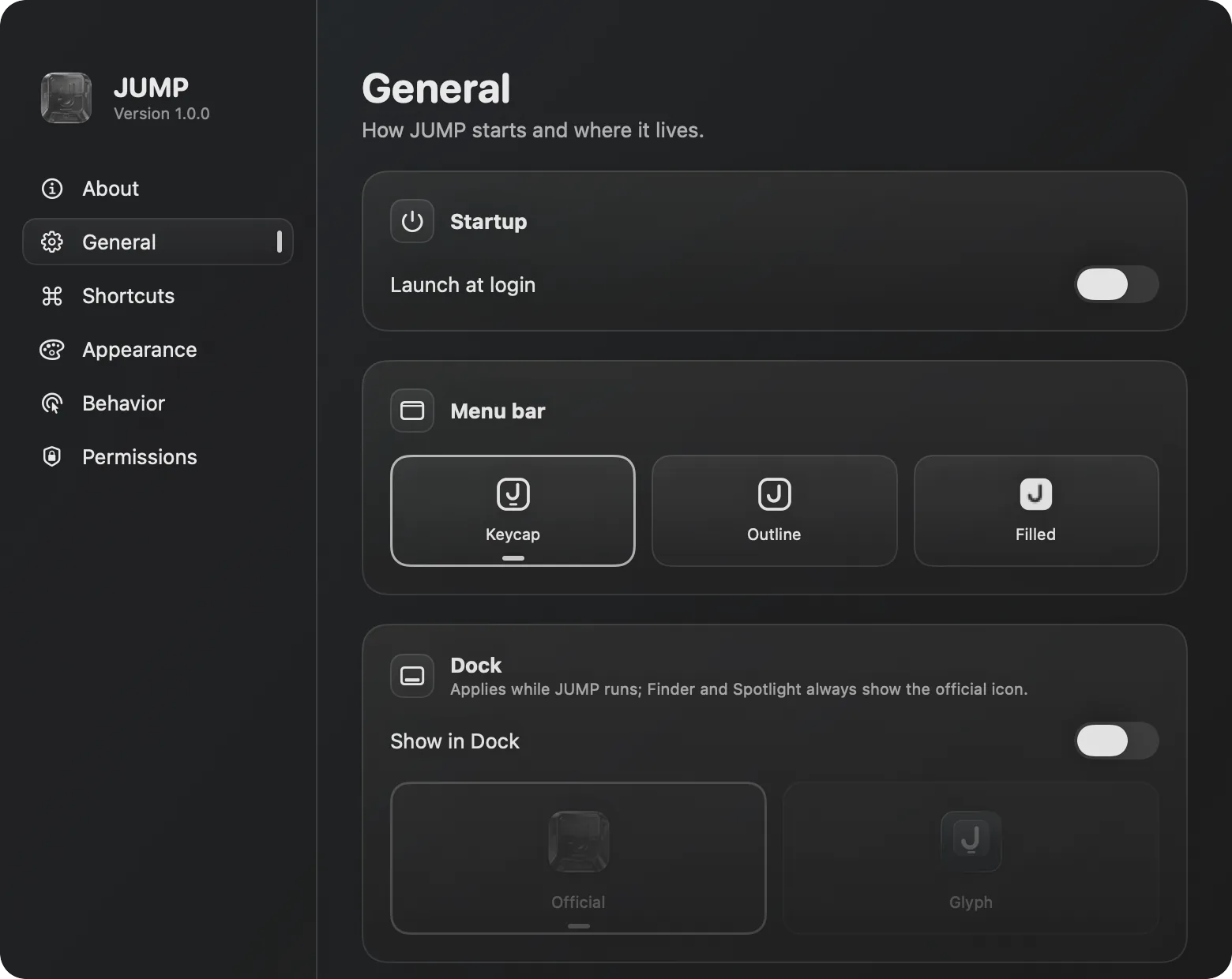 |
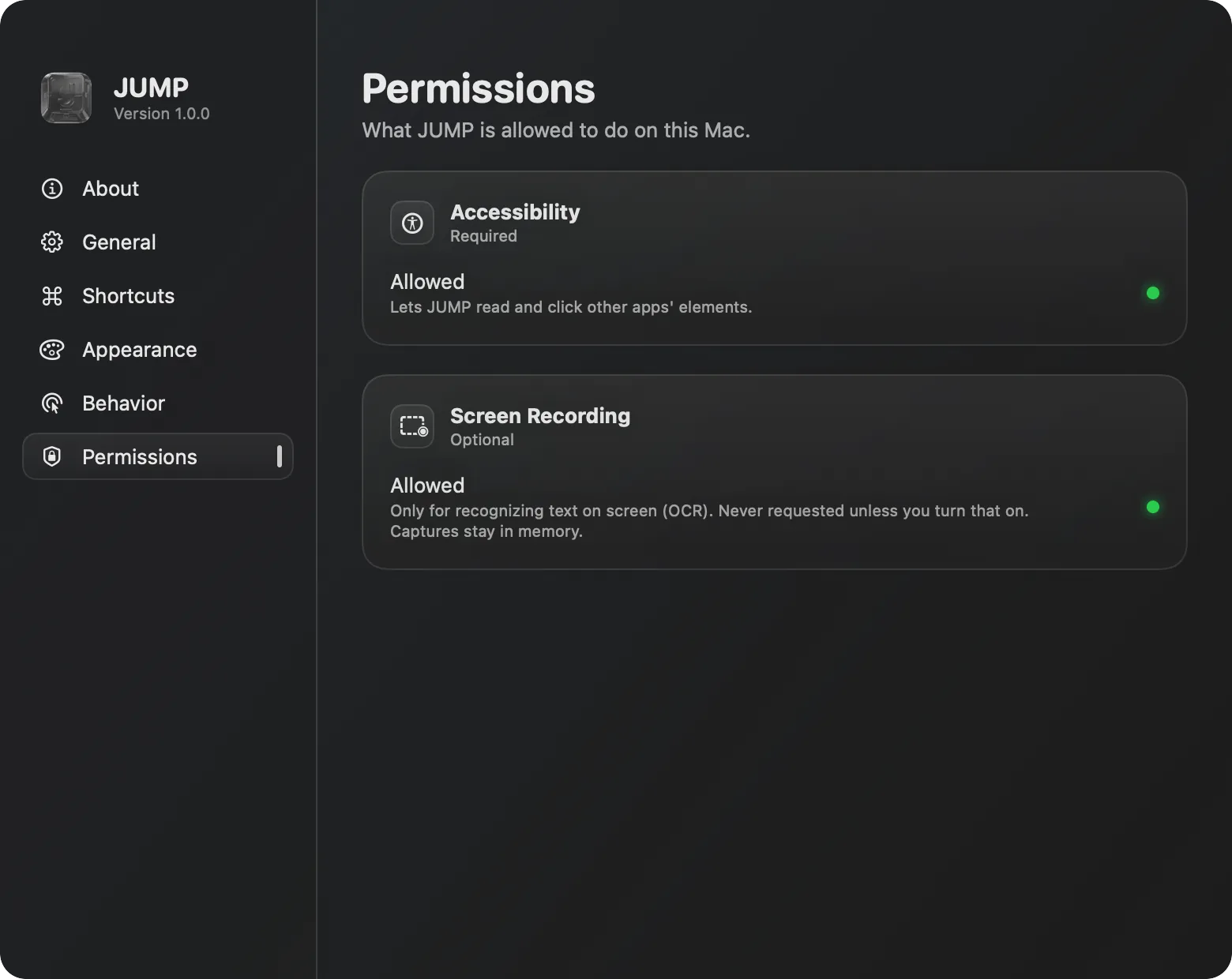 |
- Accessibility (required): to read and act on other apps' elements.
- Screen Recording (optional): only for the OCR fallback.
JUMP sends nothing anywhere: no analytics, no telemetry. Its only network request is the update check, which asks GitHub's API (api.github.com/repos/alvaldes/jump/releases/latest) on the schedule you pick; set it to Off in Settings, General and only Check Now asks.
- macOS 26 or later
- Xcode 27 or later
- XcodeGen:
brew install xcodegen
xcodegen generate        # creates JUMP.xcodeproj (not committed)
open JUMP.xcodeproj
Core logic lives in the JumpKit Swift package and is tested without launching the app:
swift test --package-path Packages/JumpKitJUMP needs the Accessibility permission, and macOS ties that permission to the app's code signature. The default ad-hoc signature changes on every build, so the permission is lost after each rebuild.
To keep it, sign with your own (free) Apple Development certificate:
- Xcode → Settings → Accounts → add your Apple ID.
cp Config/Signing.local.xcconfig.example Config/Signing.local.xcconfig- Set your
DEVELOPMENT_TEAMin that file (it is git-ignored). xcodegen generate
- Bump
MARKETING_VERSIONandCURRENT_PROJECT_VERSIONinproject.yml, rename## Unreleasedin CHANGELOG.md to the version, commit, and tag the commitv<version>. scripts/release.shbuilds the signed Release app and writesdist/JUMP.dmg(a fixed name, so the website's download link always gets the latest release). It refuses uncommitted changes, an untagged commit, and an ad-hoc signature (users would lose the Accessibility permission on every update).- Push the tag, then
scripts/release.sh --uploadattaches the disk image to the GitHub release, creating the release if needed, sets the release notes to the version's section of CHANGELOG.md (the script stops before building if there is none), and updates the version and sha256 of the Homebrew cask in alvaldes/homebrew-tap.
Until JUMP is notarized, macOS asks people to confirm the first launch; Install walks through it.
JUMP/                 macOS app target (SwiftUI menu bar agent)
Packages/JumpKit/     core logic as a Swift package (testable without the app)
Config/               shared and local build settings
project.yml           XcodeGen project definition
JUMP builds on ideas and code from Vimac by Dexter Leng and contributors (GPL-3.0), the open-source predecessor of Homerow.