给 Finder 加上右键新建文件、打开终端和剪切粘贴。
Create files, open a terminal, and cut & paste from Finder’s right-click menu.
免费开源 · 文件操作在本地完成 / Free & open source · File operations stay on your Mac
English · 中文 · 参与贡献 / Contributing · 安全说明 / Security



觉得好用欢迎 ⭐ Star 和反馈 / If it helps, a ⭐ Star or feedback is appreciated.
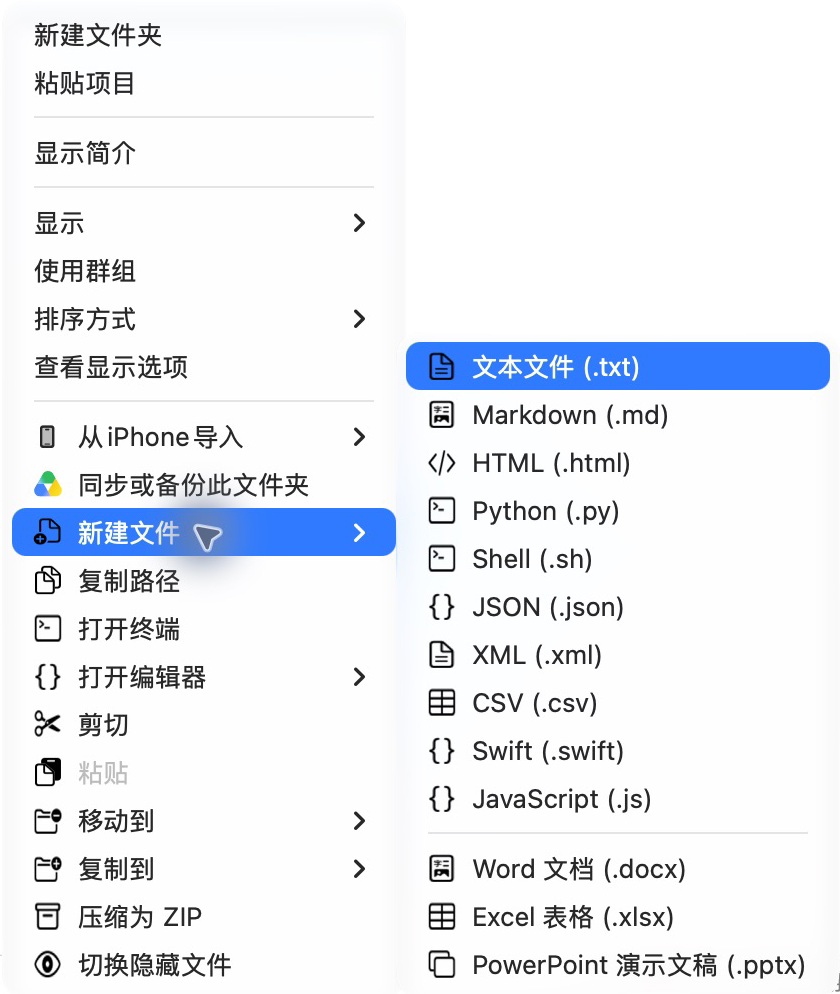
- 📄 新建文件 —— txt / Markdown / Python / JSON 等常用文本,空白 Word / Excel / PowerPoint,以及自定义模板;支持从剪贴板新建文本或 PNG/JPEG/HEIC 图片(包括在 Finder 中复制的单张图片文件),在「设置 → 文件模板」中开关(默认开启)
- ✂️ 剪切 / 粘贴 —— 补上 Finder 缺失的剪切,⌘X / ⌘V 直接用,粘贴时才真正移动;右键「已剪切 N 项…」可弹窗查看待剪切项目并逐项移除
- 💻 打开终端 / 编辑器 —— 可自定义终端 / 编辑器
- 📋 复制路径 / 文件名 / 文件内容 —— 支持设置各种格式的路径 / 文件名可选择是否带后缀
- 💾 查看磁盘占用 —— 在访达空白处或单选文件/文件夹时,在右键菜单顶部查看占用大小,点击文件夹或空白处可查看直属子项占用排行;设置「功能 → 显示大小」可关闭(默认开启)
- 📂 打开路径 —— 默认 ⇧⌘G 在 Finder 中唤起,替代系统「前往文件夹」,粘贴路径即可定位或打开;在设置「功能 → 打开路径」可选「全局生效」(默认关闭),从其他应用唤起
- 📁 移动到 / 复制到 —— 一键把选中项送到常用目录,可按最近使用排序
- 🛠 开发者工具(默认关闭)—— 复制哈希(SHA-256 / SHA-1 / MD5)、创建符号链接、复制项目相对路径、复制目录树、内置文件比较、本地 Git 状态,以及对文件 / 目录执行自定义命令;各项直接显示在常规菜单之后,在「设置 → 开发者工具」中单独开关和拖动排序。命令支持多选,可查看、复制输出和停止执行
- 🖼️ 图片快速转换 / 缩放 —— 转换为 PNG / JPEG / HEIC,或按长边等比缩放至 2560px / 1920px / 1280px / 800px;仅在选中项全为图片时显示,支持批量与撤销
- 📦 压缩 / 解压 —— 默认关闭:ZIP 使用 UTF-8 文件名
- 👀 扩展空格预览 —— 系统自带的快速查看(空格快捷键)增强,支持大多数格式,包括文件夹和压缩包等等,markdown支持渲染
- 👁 切换隐藏文件 —— 即时生效,不重启 Finder
- ↩️ 撤销 —— ⌘Z 撤销上一次移动、剪切、新建、压缩等操作
- 🕘 操作历史 —— 按日期查看每次操作的结果与失败原因,可搜索、筛选、在访达中定位
- ☁️ 云盘里也能用 —— iCloud / Google Drive 等目录通过右键「服务」菜单使用
- 简洁模式 —— 点击设置窗口右上角的胶囊按钮,收拢为固定大小、可拖动的小窗口;再次点击恢复完整设置,自动记住所选模式
- ⌨️ 自定义快捷键与菜单顺序,🌗 中英双语,🔄 应用内自动更新

要求 macOS 13+、Apple Silicon(暂不支持 Intel)。
brew install --cask funny-dog/tap/finderrightHomebrew 安装会删除隔离属性、跳过 Gatekeeper 首次检查;若希望保留系统检查,请用 DMG 安装。Tap 由本项目维护,并非 Homebrew 官方仓库。
下载 FinderRight.dmg(中国大陆自动转到 Gitee),拖入 Applications。当前版本为自签名、未经 Apple 公证,首次打开被拦截时,到 系统设置 → 隐私与安全性 → 仍要打开,或执行:
xattr -dr com.apple.quarantine /Applications/FinderRight.app如果主站访问不畅,可以试试独立展示站。它只托管展示页面,不含安装包;下载仍请使用上方 DMG 链接或 Gitee 发行版。
按引导完成:启用访达扩展、授予完全磁盘访问、授予辅助功能。
在「设置 → 关于」检查更新,或在「设置 → 通用」开启自动更新;Homebrew 用户也可以 brew upgrade --cask --greedy funny-dog/tap/finderright。升级后请重启访达,否则右键菜单可能还是旧版:
killall Finder从 1.2.0 及更早版本升级、自动更新细节
- 从 1.2.0 及更早版本首次升级:旧版是 ad-hoc 签名,系统会视为不同的程序,即使开关显示已开启也需重新授权一次。最省事的做法:
然后重新打开 FinderRight 按引导授权。1.3.0 起使用固定证书,后续升级会保留授权。
tccutil reset SystemPolicyAllFiles com.finderright.app
tccutil reset Accessibility com.finderright.app
- 自动更新:默认关闭;开启后每 6 小时检查一次,等待在途文件操作完成后,自动退出旧版、安装并启动新版。更新同时请求官网与 GitHub,优先采用可安装的新版本;没有新版的结果会再等另一渠道最多 800 毫秒,若两边都没有有效结果则继续等待正常超时,不会仅凭计时器报告“未发现新版本”。下载卡住会切换备用源;安装前核对 SHA-256、预期版本、四个组件的版本一致性与系统要求。当前使用证书签名时要求同一证书,当前应用或新包的签名读取失败都直接拒装,ad-hoc 旧版升级继续兼容已有发布流程。旧版备份保留到新版完成初始化确认后才删除(自动更新重启的后台启动同样确认);上次更新尚未确认时,新的更新会暂停并提示先完成确认。
- 混用 Homebrew 与应用内更新:应用内更新不会同步 Homebrew 的版本记录,可能导致重复安装;Cask 声明了
auto_updates true,普通brew upgrade会跳过它。
| 症状 | 处理 |
|---|---|
| 右键完全没有 FinderRight 菜单 | 在「设置 → 权限与扩展 → 右键菜单排查」中一键启用访达扩展并重启访达。 |
| 升级后菜单或角标还是旧的 | 重启访达:killall Finder。 |
云盘、/Applications 等目录没有菜单 |
系统限制,改用 右键 → 服务 子菜单(见下方说明)。 |
| 只读磁盘或安装镜像没有菜单 | 为避免侧边栏图标被替换,只读卷不启用扩展菜单,请使用 右键 → 服务。 |
| 菜单里没有压缩 / 解压 | 默认关闭,在「设置 → 功能」中开启;复制哈希与创建符号链接属于开发者工具,在「设置 → 开发者工具」中开启。 |
| 快捷键按了没反应 | 授予「辅助功能」权限;多数快捷键需要先选中文件。 |
| 剪切后没有剪刀角标 | 可能被其他扩展(如 Keka)占用,不影响粘贴;可在「设置 → 功能」开启「自动解决角标冲突」。 |
| 操作后看不到结果 | 在「设置 → 操作历史」查看结果或失败原因。 |
| 打开终端没有切到当前目录 | Ghostty / Alacritty / Kitty 已在运行时无法指定目录,属于终端自身限制。 |
| 升级后权限开关是开的却不生效 | 从 1.2.0 及更早版本升级需重新授权一次(见「升级」)。 |
| 选中文件夹或 ZIP 按空格仍是系统预览 | 在「设置 → 功能 → 快速查看」打开「预览增强」,再重新打开快速查看。 |
按空格看 .md 不是 FinderRight 的排版 |
在同一处打开「Markdown 渲染」;若提示检测到其他应用的 Markdown 预览,关闭其中一个。 |
云盘与「服务」菜单
iCloud Drive、Google Drive、OneDrive、Dropbox 等云盘是 macOS 的 File Provider 域,目录归云盘自己的扩展管理,第三方 Finder 扩展的右键菜单不会出现,完全磁盘访问也改变不了(见 Keka #1327 中转述的 Apple DTS 答复)。/Applications、/Users/Shared 等未注册目录同理。
在这些位置,FinderRight 的操作改由 右键 → 服务 提供:复制路径 / 复制文件名 / 复制文件内容 / 复制 SHA-256 / 复制项目相对路径 / 复制目录树 / 创建符号链接 / 转换为 PNG / 转换为 JPEG / 转换为 HEIC / 打开路径 / 新建文件 / 移动到 / 复制到 / 打开终端 / 打开编辑器 / 剪切 / 粘贴到此文件夹 / 压缩 / 解压。
- 粘贴:剪切后在目标目录空白处选「服务 → FinderRight:粘贴到此文件夹」;若空白处没有「服务」,可回到上一级右键目标文件夹。它移动的是 FinderRight 的剪切队列,而不是系统剪贴板。
- 新建文件、移动到 / 复制到会先弹确认框;取消不会操作文件。
- 「服务」菜单标题跟随系统语言,不随 FinderRight 的界面语言切换。
- 可在「设置 → 通用 → 显示」切换 在「服务」中显示 FinderRight,统一显示或隐藏全部服务项(默认显示)。若访达仍显示旧菜单,可点击「重启访达」刷新;重启可能中断正在进行的拷贝。
快速查看的范围与限制
- 文件夹与 ZIP / TAR / TAR.GZ / TAR.BZ2 / TAR.XZ / 7z / RAR 使用只读目录列表,可展开子目录、点击列标题排序;不预览包内文件内容,不向磁盘解压。
- apk / ipa / jar / war / whl 按 ZIP 列出内容;rpm 列出负载中的文件(zstd 压缩的负载不支持);iso 列出光盘目录;deb 与 pkg 只列出顶层成员(如
data.tar.xz、Payload),不再展开内层包。 - YAML / YML / TOML / INI 与按内容识别的文本、配置和源码支持 UTF-8 与带 BOM 的 UTF-16;超过 1 MiB 时只读取开头,在最后一个完整换行处截断并提示(没有换行时保留完整字符的前缀),仍支持语法高亮。
.gitignore、.env等点文件,Dockerfile等无扩展名文件,.conf/.config/.cfg等配置文件,系统不认识的源码(.go/.rs/.tsx/.vue/.scss/.sql/.proto/.tf等)、.jsonl/.lock等结构化文本,以及.srt/.vtt/.tex/.org等字幕与标记文档,都按内容识别:是文本则显示内容;Swift、Go、Rust、JS/TS、Python、Shell、JSON、YAML、TOML 支持轻量语法高亮,未知语言保持纯文本,不是文本(如.DS_Store、可执行程序)则保留系统默认预览。TypeScript 的.ts被系统固定识别为视频,无法接管。- Markdown(
.md)渲染标题、列表、任务列表、表格、引用与代码块,已标明上述语言的围栏代码块也支持着色;着色跟随浅深色外观,单段超过 1 MiB 时降级为纯文本;最多 1 MiB;表格保留列对齐,保留脚注引用标记与定义正文(不提供脚注跳转);开头的 YAML 元信息以原文显示;图片只显示替代文字,HTML 按原文显示,链接悬停可查看目标、右键可复制地址,但不可点击跳转,不加载任何外部资源。它是独立的预览扩展,可在设置里单独关闭;若 MarkEdit 等应用也提供 Markdown 预览,设置页会提示只保留一个。 - 文档预览在后台生成显示内容,减少 Notebook 与 SQLite 等复杂内容准备时的主线程阻塞。
- Jupyter Notebook(v4)最多读取 5 MiB、展示 200 个单元;渲染 Markdown、显示代码与已保存的文字输出,不执行代码、不加载外部资源,不显示图片与 HTML 输出。
- SQLite(
.sqlite/.sqlite3)只读展示最多 20 张普通表的列名、类型和每表前 50 条记录,单元格最多展示 512 字节;跳过视图、虚拟表和生成列。使用主文件快照,不包含尚未合并到主文件的 WAL 数据。 - CSV / TSV 以表格显示(首行为表头,自动识别逗号 / 分号 / 制表符,支持 GBK 编码),最多显示 500 行 × 50 列;plist 显示为文本,二进制 plist 自动转换为 XML。
- 包含隐藏项;不展开符号链接或
.app等文件包,不递归统计目录大小。 - 每层文件夹最多 2,000 项,压缩包最多 10,000 条记录,超出会提示内容不完整;其他压缩格式还受扫描资源上限约束。
- 不支持 ZIP64、分卷 ZIP;加密 ZIP 可显示条目但不解密。
- 预览扩展有独立的沙箱权限,主 App 的完全磁盘访问不会自动授予它。
其他已知行为
- 加密 / 分卷压缩包:加密 ZIP 会弹密码框;加密的 7z / RAR 和分卷包无法解压,会提示失败并自动清理临时文件。
- 撤销:只支持单级撤销,与访达自己的撤销按先后顺序共存;文件被改过或原位置有同名项时跳过,删除一律进废纸篓。
- 新建文件:桌面新建不弹出访达窗口,其他目录仍自动选中新文件。
- 剪贴板新建:文件名默认
untitled,可修改;文本类型从下拉框选择,最后一项「自定义」可填写后缀;图片可选 PNG、JPEG 或 HEIC,JPEG 的透明区域会铺白底。文本和图片分别记住上次成功创建时的格式,包括自定义文本后缀;取消或创建失败不更新记忆。 - 开发者工具:复制哈希计算 SHA-256 / SHA-1 / MD5,多选与 shasum 格式一致;创建符号链接在原位置生成终端与开发工具可识别的符号链接。项目相对路径以最近 Git 仓库为基准;目录树最多 4 层、1,000 项和 128 KiB,跳过常见依赖与构建目录,不展开符号链接或文件包。文件比较使用紧凑窗口,未选齐时显示左右拖入框,选齐后收成顶部窄栏,下方按行并排显示新增、删除与行号,可随时移除或替换文件;只读支持 UTF-8 和带 BOM 的 UTF-16,每个文件最多 1 MiB、20,000 行。Git 状态支持切换和新建本地分支、暂存/取消暂存、提交,以及目录筛选和已暂存/未暂存 diff。提交前列出整个仓库的暂存文件,沿用 Git 身份、hooks 与签名配置;需要终端交互的流程暂不支持。拉取会把远端改动合并到当前分支,推送按当前分支的上游提交,两者都只通过 https、ssh 或 git 协议联网,并且需要仓库已在终端配置好远端与上游分支。不比较符号链接或子模块内容。自定义命令以
zsh登录环境在后台执行,选中项通过"$@"传入;不支持交互输入和撤销,关闭输出窗口或退出应用会停止命令。自定义命令暂不提供云盘「服务」入口。 - 操作历史:仅保存在本机,默认保留最近 100 条(可选 0 / 50 / 500);清空历史不影响文件和撤销。
- 剪切状态:粘贴过程中主 App 崩溃,未移动的项目会在下次启动时恢复回剪切队列。取消剪切失败时会提示原因,排除权限等问题后可重试。
- 语言:右键菜单即时切换,剪切角标文案需重启访达后生效。
完全卸载
killall FinderRight 2>/dev/null || true
rm -rf /Applications/FinderRight.app
rm -rf ~/Library/Application\ Support/FinderRight
rm -f ~/Library/Preferences/com.finderright.app.plist
tccutil reset All com.finderright.app 2>/dev/null || true
killall Finder只需 Command Line Tools,无需 Xcode:
bash scripts/setup-signing.sh  # 仅首次:生成自签名证书(请备份私钥)
bash scripts/ci.sh             # 编译 + 单元测试 + 类型检查
bash scripts/build.sh          # 产出 .app 与 DMG / ZIP
也可以用 xcodegen 生成 Xcode 工程(xcodegen generate)。项目由主 App(未沙箱,执行文件操作)、Finder 扩展(沙箱,提供右键菜单)和 Quick Look 扩展组成,扩展通过「文件 + URL scheme」唤醒主 App,无需 App Group 或付费开发者账号。官网源码见 website/。
- 📄 New File — common text files (txt / Markdown / Python / JSON…), blank Word / Excel / PowerPoint, and your own templates; create text files or PNG/JPEG/HEIC images from the clipboard, including a single image file copied in Finder; enabled by default in Settings → File Templates
- ✂️ Cut / Paste — the cut that Finder lacks; use ⌘X / ⌘V, files only move when you paste; right-click “N Item(s) Cut…” to inspect queued items and remove them individually
- 💻 Open in Terminal / Editor — customize your terminal and editor
- 📋 Copy Path / File Name / File Content — choose from various path formats and whether file names include extensions
- 💾 Disk Usage — see the size at the top of Finder’s right-click menu for empty areas or a selected file/folder, and click folders to view direct children breakdown; turn it off in Settings → Features → Show Size (on by default)
- 📂 Open Path — press ⇧⌘G in Finder by default to replace Go to Folder, then paste a path to reveal or open it; optionally enable “Use Globally” in Settings → Features → Open Path (off by default) to invoke it from other apps
- 📁 Move To / Copy To — send the selection to a favorite folder in one click, optionally sorted by recent use
- 🛠 Developer Tools (off by default) — copy file hashes (SHA-256 / SHA-1 / MD5), create symbolic links, copy project-relative paths and directory trees, compare text files in a built-in window, view local Git status, or run custom commands on files and folders. Actions appear directly after the regular menu; toggle and reorder them separately in Settings → Developer Tools. Commands support multiple items, output viewing and copying, and stopping
- 🖼️ Image Convert / Scale — convert to PNG / JPEG / HEIC, or scale proportionally by long edge to 2560px / 1920px / 1280px / 800px; shown only when all selected items are images, with batch support and undo
- 📦 Compress / Extract — off by default; ZIPs use UTF-8 filenames
- 👀 Extended Quick Look previews — enhance the built-in Quick Look (Space bar) with support for most formats, including folders and archives, plus rendered Markdown
- 👁 Toggle Hidden Files — instant, no Finder restart
- ↩️ Undo — ⌘Z undoes the last move, cut, new file, compress and more
- 🕘 Operation History — review each action's result or failure reason by date; search, filter and reveal in Finder
- ☁️ Works in cloud folders — use it in iCloud / Google Drive via the right-click Services menu
- Compact mode — click the capsule at the top right of Settings to fold it into a small, fixed-size window you can drag; click again to restore full settings. Your choice is remembered.
- ⌨️ Custom shortcuts and menu order, 🌗 English & Chinese, 🔄 in-app auto-update
The screenshots show the Chinese interface; FinderRight is also fully available in English.
Requires macOS 13+ on Apple Silicon (Intel is not supported).
brew install --cask funny-dog/tap/finderrightHomebrew removes the quarantine attribute and skips the Gatekeeper first-launch check; use the DMG if you want to keep it. The tap is maintained by this project, not Homebrew's official repository.
Download FinderRight.dmg and drag it into Applications. The app is self-signed and not notarized by Apple; if the first launch is blocked, go to System Settings → Privacy & Security → Open Anyway, or run:
xattr -dr com.apple.quarantine /Applications/FinderRight.appIf the main site is slow or unreachable, try the standalone mirror. It hosts the showcase page only, not installers; use the DMG link above or Gitee releases for downloads.
Follow the onboarding: enable the Finder extension, grant Full Disk Access, and grant Accessibility.
Check for updates in Settings → About, or turn on automatic updates in Settings → General; Homebrew users can also run brew upgrade --cask --greedy funny-dog/tap/finderright. Restart Finder after upgrading, or the context menu may stay on the old version:
killall FinderUpgrading from 1.2.0 or earlier, auto-update details
- First upgrade from 1.2.0 or earlier: older builds were ad-hoc signed, so macOS treats the new one as a different app; re-grant permissions once even if the toggles look on. The easiest way:
Then reopen FinderRight and follow the onboarding. Since 1.3.0 a fixed certificate is used, so later upgrades keep permissions.
tccutil reset SystemPolicyAllFiles com.finderright.app
tccutil reset Accessibility com.finderright.app
- Auto-update: off by default; when on, it checks every 6 hours, waits for in-flight file operations to finish, then exits the old version, installs and launches the new version. It queries the website and GitHub and accepts an installable new version immediately. A no-update result gives the other source up to 800 more milliseconds; if neither source has a valid result, the app waits for normal timeouts rather than reporting no update from a timer. Stalled downloads switch to the alternate source. SHA-256, the expected version, consistent component versions and system requirements are checked before installation. Certificate-signed builds require the same certificate; an unreadable signature — on either the current app or the update package — is rejected, while upgrading existing ad-hoc builds remains compatible. The old-version backup is removed only after the new version finishes initializing and confirms installation (the background relaunch of an automatic update confirms as well); while a previous update is unconfirmed, further updates pause and ask you to confirm first.
- Mixing Homebrew and in-app updates: in-app updates don't update Homebrew's version record, which may cause reinstalls; the cask declares
auto_updates true, so a plainbrew upgradeskips it.
| Symptom | Fix |
|---|---|
| No FinderRight items in the right-click menu | Use Settings → Permissions & Extensions → Troubleshooting to enable the Finder extension and relaunch Finder. |
| Menu or badges look old after upgrading | Relaunch Finder: killall Finder. |
No menu in cloud folders, /Applications, etc. |
A system limitation; use right-click → Services instead (see below). |
| No menu on read-only disks or installer images | To preserve sidebar icons, extension menus are disabled on read-only volumes. Use right-click → Services. |
| No Compress / Extract in the menu | Off by default; turn them on in Settings → Features. Copy Hash and Make Symbolic Link belong to Developer Tools; turn them on in Settings → Developer Tools. |
| Shortcuts do nothing | Grant Accessibility; most shortcuts need a selected item. |
| No scissors badge after cutting | Another extension (such as Keka) may hold the badge; paste still works. Turn on "Resolve Badge Conflicts Automatically" in Settings → Features. |
| No visible result after an action | Check Settings → Operation History for the result or failure reason. |
| Open in Terminal doesn't switch folders | Ghostty / Alacritty / Kitty can't take a working directory while already running. |
| Permissions look on but don't work after upgrading | Upgrading from 1.2.0 or earlier requires re-granting once (see "Upgrading"). |
| Space on a folder or ZIP still shows the system preview | Turn on "Enhanced previews" in Settings → Features → Quick Look, then reopen Quick Look. |
Space on a .md file doesn't show FinderRight's formatting |
Turn on "Markdown rendering" in the same place; if it reports another app’s Markdown preview, turn one of them off. |
Cloud folders and the Services menu
iCloud Drive, Google Drive, OneDrive, Dropbox and similar services are File Provider domains on macOS, owned by the provider's own extension, so third-party Finder extension menus don't appear there, and Full Disk Access doesn't change that (see the Apple DTS reply quoted in Keka #1327). Unregistered folders such as /Applications and /Users/Shared behave the same way.
In these places FinderRight's actions are available under right-click → Services: Copy Path / Copy File Name / Copy File Content / Copy SHA-256 / Create Symbolic Link / Convert to PNG / Convert to JPEG / Convert to HEIC / Go to Folder / New File / Move To / Copy To / Open in Terminal / Open in Editor / Cut / Paste into This Folder / Compress / Extract.
- Paste: after cutting, right-click empty space in the destination and choose "Services → FinderRight: Paste into This Folder"; if Services is missing there, right-click the destination folder from its parent. It moves FinderRight's cut queue, not the system clipboard.
- New File and Move To / Copy To show a confirmation dialog first; cancelling does nothing.
- Service titles follow the system language, not FinderRight's language setting.
- In Settings → General → Display, use “Show FinderRight in Services” to show or hide all service items (shown by default). If Finder still shows the old menu, click “Relaunch Finder” to refresh it; relaunching may interrupt copies in progress.
Quick Look scope and limits
- Folders and ZIP / TAR / TAR.GZ / TAR.BZ2 / TAR.XZ / 7z / RAR archives use read-only, expandable and sortable listings; no archived file-content preview or extraction to disk.
- apk / ipa / jar / war / whl are listed as ZIP; rpm lists its payload files (zstd-compressed payloads aren't supported); iso lists the disc directory; deb and pkg list only top-level members (such as
data.tar.xzorPayload) without opening nested archives. - YAML / YML / TOML / INI and content-detected text, configuration and source files use UTF-8 or BOM-marked UTF-16. Files over 1 MiB show only the bounded prefix through its last complete newline, with a notice and syntax highlighting; without a newline, the prefix ends at a complete character.
- Dotfiles such as
.gitignoreand.env, extensionless files such asDockerfile, config files such as.conf/.config/.cfg, source code macOS doesn't recognize (.go/.rs/.tsx/.vue/.scss/.sql/.proto/.tfand more), structured text such as.jsonl/.lock, and subtitles or markup such as.srt/.vtt/.tex/.orgare detected by content: text is displayed with lightweight syntax highlighting for Swift, Go, Rust, JS/TS, Python, Shell, JSON, YAML and TOML; unknown languages stay plain text, while non-text files (such as.DS_Storeor executables) keep the system's default preview. TypeScript.tsfiles can't be taken over because macOS always treats them as video. - Markdown (
.md) renders headings, lists, task lists, tables, quotes and code blocks, up to 1 MiB; table column alignment is preserved, and footnote markers and definition text are preserved without jump navigation; leading YAML front matter is shown as-is; images show only their alt text, HTML is shown as plain text, hover over links to see their targets or right-click to copy their addresses; links don't open, and no external resources are loaded. It's a separate preview extension you can turn off in Settings; if another app such as MarkEdit also previews Markdown, Settings suggests keeping only one. Fenced code blocks tagged with the supported languages are also highlighted. Colors follow light/dark appearance; individual blocks over 1 MiB remain plain text. - Document preview content is generated in the background to reduce main-thread blocking while preparing complex Notebook and SQLite previews.
- Jupyter Notebook v4 reads up to 5 MiB and displays up to 200 cells, with rendered Markdown, code and saved text outputs. Code is never executed, external resources are never loaded, and image/HTML outputs are omitted.
- SQLite (
.sqlite/.sqlite3) displays names and types of columns and up to 50 rows from each of 20 ordinary tables, with a 512-byte cell display limit. Views, virtual tables and generated columns are skipped. Read-only previews use the main database file snapshot and omit uncheckpointed WAL changes. - CSV / TSV files are shown as a table (first row as header; comma, semicolon or tab detected automatically; GBK encoding supported), up to 500 rows × 50 columns; plist files are shown as text, with binary plists converted to XML.
- Includes hidden items; doesn't follow symbolic links, browse app packages, or compute folder sizes.
- Up to 2,000 items per folder and 10,000 archive records, with a notice when truncated; other archive formats also have scan resource limits.
- ZIP64 and split ZIPs aren't supported; encrypted ZIPs list entries but aren't decrypted.
- The preview extension has its own sandbox permissions; the main app's Full Disk Access doesn't extend to it.
Other known behavior
- Encrypted / multi-volume archives: encrypted ZIPs prompt for a password; encrypted 7z / RAR and split archives fail with a message, and temporary files are cleaned up.
- Undo: single-level only, interleaved with Finder's own undo; items that changed or whose original location is taken are skipped, and deletions always go to the Trash.
- New File: creating a file on the desktop does not open a Finder window; other folders still select the new file automatically.
- Create from Clipboard: the file name defaults to
untitledand can be changed. Select a text file type from the dropdown, or use its final Custom option to enter an extension. Images can be saved as PNG, JPEG or HEIC; transparent areas are filled white for JPEG. Text and images separately remember the last successfully used format, including custom text extensions; cancelling or a failed creation keeps the previous choice. - Developer Tools: Copy Hash computes SHA-256 / SHA-1 / MD5 with output matching shasum for multiple items. Make Symbolic Link creates symbolic links next to the originals that Terminal and developer tools recognize. Relative paths use the nearest Git repository. Directory trees show up to 4 levels, 1,000 items and 128 KiB, skip common dependency and build folders, and do not expand symbolic links or packages. File comparison uses a compact window: two drop areas before both files are selected, then slim file bars above aligned line numbers and additions/deletions. Files can be removed or replaced at any time. It is read-only and supports UTF-8 and UTF-16 with a BOM, up to 1 MiB and 20,000 lines per file. Git status supports switching and creating local branches, staging/unstaging, commits, folder filtering and staged/unstaged diffs. Review all staged files across the repository before committing. Git identity, hooks and signing settings are respected; workflows requiring terminal input are unsupported. Pull merges remote changes into the current branch, and push sends it to its upstream; both connect only over https, ssh or git, and require a remote and upstream branch already configured in Terminal. Content diffs for symbolic links or submodules are not provided. Custom commands run in a background login
zsh, with selected items passed as"$@"; interactive input and undo are unavailable. Closing the output window or quitting stops the command. Custom commands are not currently available through Services in cloud folders. - Operation history: stored only on this Mac, keeping the latest 100 entries by default (0 / 50 / 500 also available); clearing it doesn't affect files or undo.
- Cut state: if the main app crashes mid-paste, unmoved items return to the cut queue on next launch. If canceling cut fails, the app explains why; resolve the issue, such as permissions, and retry.
- Language: the context menu switches immediately; the cut badge label updates after Finder restarts.
Complete uninstall
killall FinderRight 2>/dev/null || true
rm -rf /Applications/FinderRight.app
rm -rf ~/Library/Application\ Support/FinderRight
rm -f ~/Library/Preferences/com.finderright.app.plist
tccutil reset All com.finderright.app 2>/dev/null || true
killall FinderCommand Line Tools only, no Xcode required:
bash scripts/setup-signing.sh  # first time only: create the self-signed certificate (back up the private key)
bash scripts/ci.sh             # build + unit tests + type checks
bash scripts/build.sh          # produces the .app plus DMG / ZIP
You can also generate an Xcode project with xcodegen (xcodegen generate). The project consists of the main app (non-sandboxed, performs file operations), a Finder extension (sandboxed, provides the menu) and a Quick Look extension; the extensions wake the main app via a file + URL scheme, with no App Group or paid developer account required. Website source lives in website/.