
Drag a file, give it a little shake, and convert it in a blink.
A tiny radial menu for macOS and Windows that pops up right where you drag.





Website · Download · How it works · What it converts · Build · Tiếng Việt

Converting a file usually means opening an app, finding Export, picking a format and a folder. With SATF you just keep dragging:
- Shake the file you're dragging (or press ⌥ ⇧ Space / Alt + Shift + Space).
- A menu appears under your cursor.
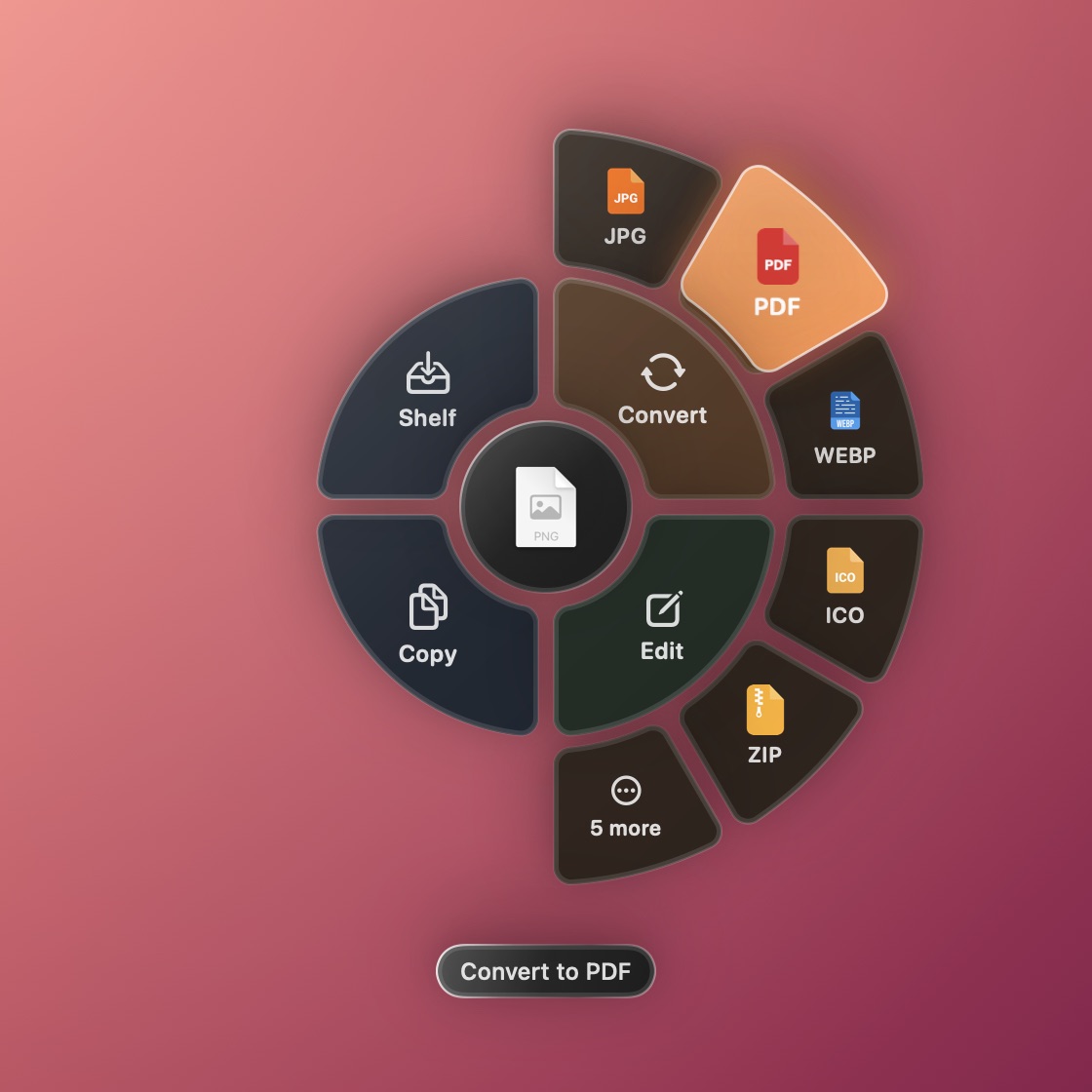
- Drop the file on a format. The new file appears next to the original. That's it.
No uploads, no accounts, no ads. Everything happens on your computer.
- 🎯 Radial menu right at your cursor: Convert and Edit on the right, Copy and Shelf on the left.
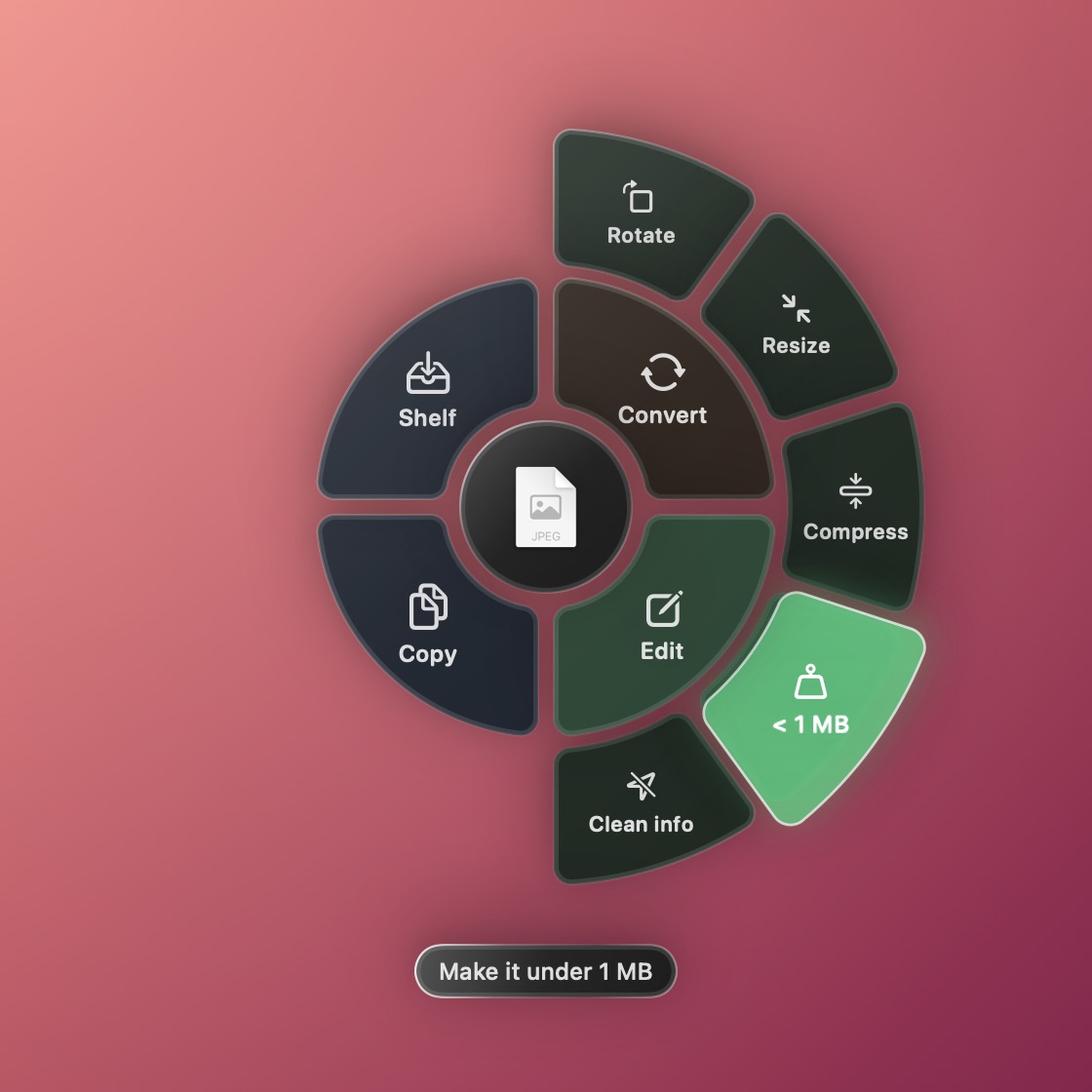
- ✏️ Quick image edits: rotate, resize, compress, squeeze under 1 MB, remove location & camera info, or stack several images into one tall image. Rotate PDFs too.
- 🔄 Convert images, PDFs, documents, video and audio: the most-used formats come first, the rest are one hover away.
- 📚 Several files at once: merge them into one PDF (PDFs, Word, Excel, PowerPoint, images, text, in the order you picked them), or compress them into one ZIP. A multi-page PDF can also be split into one PDF per page.
- 📦 Extract archives: zip, rar, 7z, tar, gz, bz2, xz. Works with The Unarchiver, Keka, 7-Zip, WinRAR and others if you prefer them.
- 🗂️ Shelf: a floating tray to collect files from different places. Select several (Ctrl/⌘-click, Ctrl+A/⌘A) and drag them out together, copy them, or share them.
- 🪶 Lightweight by default: heavy add-ons (LibreOffice, FFmpeg) download only when you need them, and you can remove them anytime.
- 🔔 Clear feedback: a progress note for longer jobs, then "Done · saved in Downloads". Click it to show the file.
- ⬆️ Updates itself: when a new version is out, click the notification and SATF downloads it, checks it, installs it and restarts. You can turn this off in Settings.
- 🌏 English and Tiếng Việt, switchable in Settings.
- 🧹 Clean uninstall that removes everything SATF created.
| Platform | Download | Requirements |
|---|---|---|
| macOS | SATF-1.2.3.dmg | macOS 13 Ventura or later · Apple Silicon & Intel |
| Windows | SATF-Setup-1.2.2.exe | Windows 10 (2004) or later · 64-bit |
All versions are on the Releases page.
- Open the DMG and drag SATF into Applications.
- Open SATF. It's signed and notarized by Apple, so it opens right away.
- Look for the SATF icon in the menu bar. That's where Settings, Shelf and Add-ons live.
- Run SATF-Setup. Pick your language and any add-ons you want now (you can skip them).
- If Windows shows "Windows protected your PC", click More info → Run anyway.
- SATF starts with Windows and lives in the system tray (bottom-right corner).
Why the Windows warning? The macOS app is signed and notarized by Apple. The Windows app isn't code-signed yet, so SmartScreen asks once. The source code is right here if you'd like to check it or build it yourself.
 |
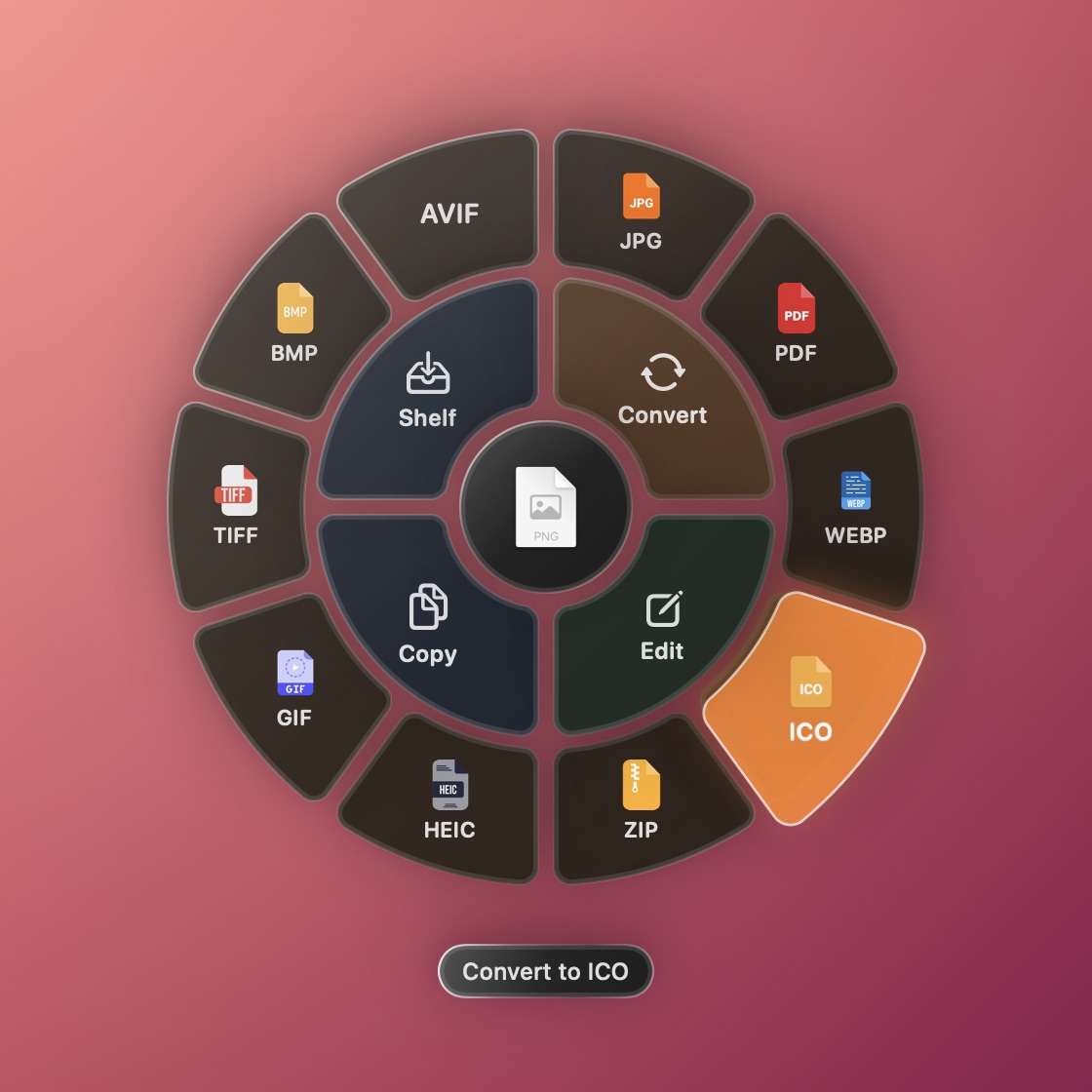 |
| Convert: drop the file on a format. | More formats: hover More to see them all. |
 |
 |
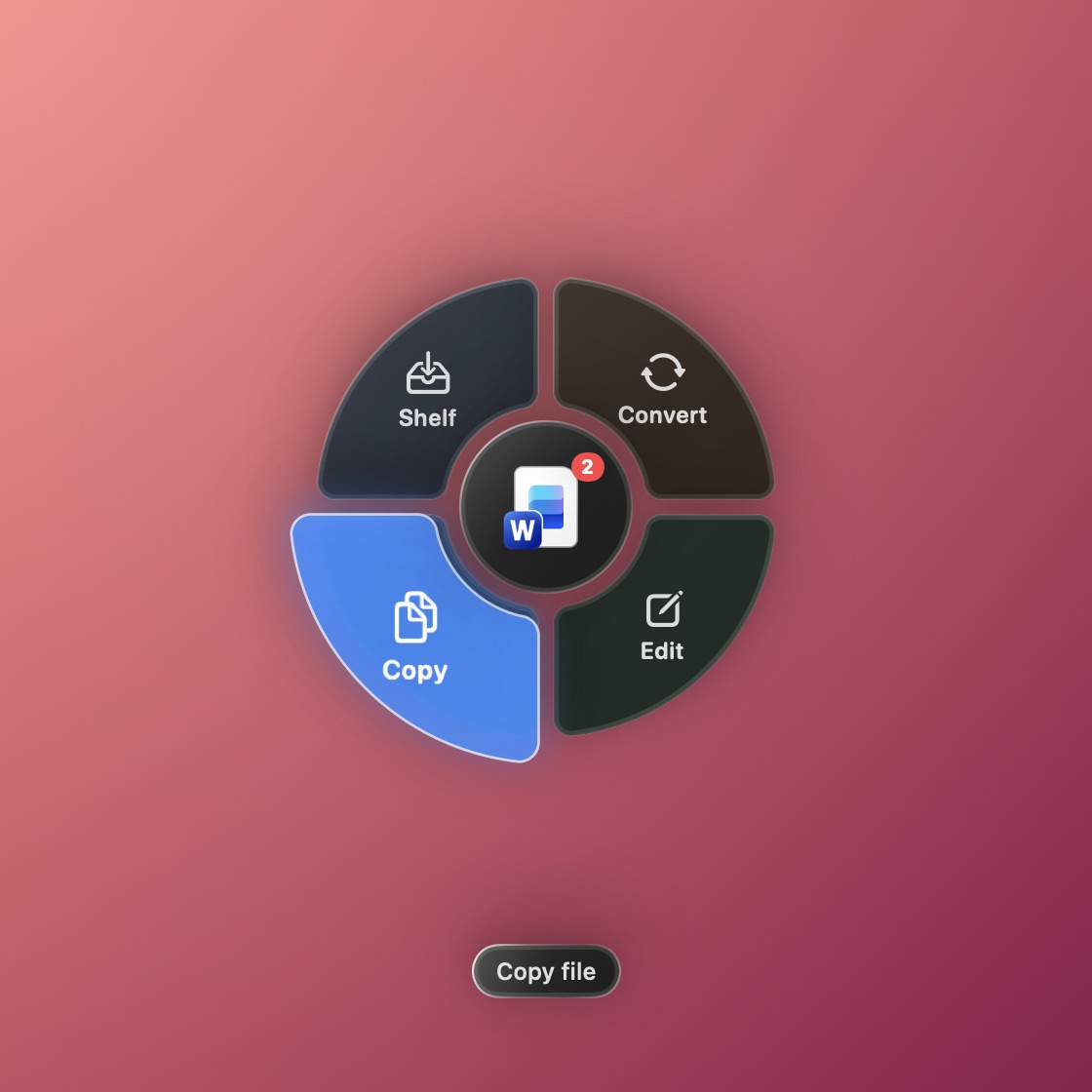
| Copy (bottom) or Shelf (top). | Shelf: select several files and drag them out together. |
 |
 |
| Edit: rotate, resize, compress, squeeze under 1 MB, clean info. | Several files: merge into one PDF or stack into one image. |
- Start dragging any file or several files.
- Shake it left and right while holding Shift, or press the shortcut.
- Drop it on:
- Convert → (top right) a format. More than six choices? Hover More to open the full circle.
- Edit → (bottom right) an edit: rotate, resize, compress, under 1 MB, clean info, merge PDF, stack. The original is never changed.
- Copy puts the file on the clipboard.
- Shelf keeps it in a floating tray for later.
- Changed your mind? Press Esc, click outside, or just drop the file somewhere else.
Not dragging anything? The shortcut opens the Shelf instead.
New files are saved next to the original, and the original is never changed.
| You drag… | macOS | Windows |
|---|---|---|
| Images: PNG, JPG, HEIC, WebP, GIF, TIFF, BMP, SVG… | JPG, PNG, PDF, WebP, HEIC, GIF, TIFF, BMP, AVIF, ICO | JPG, PNG, PDF, WebP, GIF, TIFF, BMP |
| JPG, PNG (one per page), TXT, Split (one PDF per page) | JPG, PNG (one per page), DOCX ¹, Split (one PDF per page) | |
| Word: DOCX, DOC, ODT, RTF | PDF, DOCX, TXT, RTF, HTML, ODT | PDF, DOCX, TXT, RTF, HTML, ODT ¹ |
| Excel: XLSX, XLS, ODS | PDF, CSV ¹ | PDF, XLSX, CSV ¹ |
| PowerPoint: PPTX, PPT, ODP | PDF, PNG, JPG ¹ | PDF, PNG, JPG, PPTX ¹ |
| Text: TXT, MD, HTML | PDF, DOCX, TXT, RTF, HTML, ODT | TXT, MD, HTML, PDF ¹, DOCX ¹ |
| Video: MP4, MOV, MKV… | MP4, MOV, M4A | MP4, MP3, M4A, WAV ² |
| Audio: MP3, WAV, M4A… | M4A, WAV, AIFF | MP3, M4A, WAV ² |
| Archives: zip, rar, 7z, tar, gz, bz2, xz | Extract | Extract |
| Anything else, including folders | ZIP | ZIP |
| Several files (PDF, Word, Excel, PowerPoint, images, text) | Merge into one PDF ³ | Merge into one PDF ¹ ³ |
| Several files of any kind | One ZIP with all of them | One ZIP with all of them |
¹ Uses Microsoft Office if you have it; otherwise the Office add-on. ² Needs the Video & music add-on. ³ Pages follow the order you picked the files. Office files need the same apps or add-on as converting them to PDF.
SATF stays small. Bigger tools download only when they're needed:
| Add-on | Unlocks | Download size |
|---|---|---|
| Office (LibreOffice) | Excel & PowerPoint on Mac; Word, Excel & PowerPoint on Windows | ~300–350 MB |
| Video & music (FFmpeg, Windows only) | MP4, MP3, M4A, WAV | ~115 MB |
- During setup: the Windows installer lets you tick add-ons. On Mac, SATF asks the first time you open it, and only if you don't already have Office or Numbers / Keynote.
- When you need one: SATF asks "One more step", downloads it, then converts your file right away.
- Free up space: menu → Add-ons… shows how much each one uses, with a Remove button. If you need it again, SATF will ask.
Already have Microsoft Office? SATF uses it and doesn't ask for anything.
Drag a zip, rar, 7z, tar, gz, bz2 or xz file and choose Extract. Files appear in a folder next to the archive. If the archive holds just one folder, you get that folder directly, without an extra nested one.
Have another archive app? SATF supports The Unarchiver, Keka, BetterZip, WinZip (Mac) and 7-Zip, WinRAR, Bandizip (Windows). The first time, SATF asks which one to use: Just once or Always. Change it later in Settings → Archives, separately for extracting and for making ZIPs.

- Language: English or Tiếng Việt.
- Shake: turn it on or off, choose a key to hold (none, Shift, Option/Alt, Control, Command) and how firm the shake should be (a 1–10 slider).
- Images: compress level, the "under … MB" target (200 KB–5 MB) and the resize size (1080–3840px).
- Keyboard shortcut: click and press a new combination.
- Archives: which app extracts and which app makes ZIPs.
- Add-ons: see, download or remove them.
- Open at login / Start with Windows.
- Updates: SATF checks for a new version when it starts and once a day; click the notification to update. Turn it off or check now here.
- Files never leave your computer. SATF converts everything locally.
- No accounts, no analytics, no tracking.
- SATF goes online only to:
- check GitHub for a new SATF version (at launch and once a day; you can turn this off in Settings → Updates). Nothing about you or your files is sent.
- download an add-on when you choose to, from the official project sites (libreoffice.org, gyan.dev).
- From the app: menu → Uninstall SATF… removes the app, settings and add-ons.
- Windows: you can also use Settings → Apps or Control Panel → Programs.
- macOS: dragging SATF to the Trash leaves downloaded add-ons behind in
~/Library/Application Support/SATF. Use Uninstall SATF… to remove everything.
Found a bug or have an idea? Use Report a Bug… or Suggest a Feature… in the SATF menu (it opens an email), or open an issue.
Both apps build on a Mac.
macOS app (needs the Xcode Command Line Tools: xcode-select --install):
./build.sh→ build/SATF.app and build/SATF-<version>.dmg
Windows app (needs the .NET 10 SDK and NSIS: brew install makensis):
./build-win.sh→ build/windows/SATF-Setup-<version>.exe (installer) and build/windows/SATF.exe (portable)
Screenshots for this README come straight from the SwiftUI code:
./scripts/screenshots.shThe version number lives in VERSION. All icons are generated from assets/brand/logo.png.
Project structure
├── Sources/                  macOS app (Swift · AppKit + SwiftUI)
│   ├── AppDelegate.swift       Menu bar icon, menu, uninstall, feedback
│   ├── RadialMenu.swift        The radial menu
│   ├── Converter.swift         All conversions
│   ├── Archivers.swift         Third-party archive apps
│   ├── AddOns.swift            Add-on download / remove
│   ├── Shelf.swift             Floating shelf
│   ├── Settings*.swift         Settings & language
│   ├── ShakeDetector.swift     Shake gesture
│   ├── HotKeyManager.swift     Global shortcuts (incl. Esc)
│   └── Updater.swift           Automatic updates
├── Windows/                  Windows app (C# · WPF)
│   ├── RadialMenuWindow.cs     The radial menu
│   ├── Converter.cs            All conversions
│   ├── Archivers.cs            7-Zip, WinRAR, Bandizip
│   ├── AddOns.cs               Add-on download / remove
│   ├── SettingsWindow.cs       Settings
│   ├── Updater.cs              Automatic updates
│   └── installer.nsi           Windows installer (NSIS)
├── assets/brand/logo.png     Logo, source of every app icon
├── assets/icons/formats/     File-format icons for the radial menu
├── assets/images/            Support QR code
├── docs/images/              README screenshots
├── scripts/screenshots.sh    Regenerates the screenshots
├── scripts/promo.sh          Renders the vertical promo video (build/promo/)
├── build.sh · build-win.sh   Build scripts
└── VERSION                   Version for both apps
Pull requests, translations and ideas are welcome. Please read CONTRIBUTING.md first.
SATF is free, open source and made by one developer in Vietnam. If it saves you time, every way to support it (Ko-fi, PayPal, GitHub or bank transfer in Vietnam) is on one page:

In the app, Support SATF… (menu bar / tray menu) shows a QR code to the same page. A ⭐ on this repo helps a lot too. Interested in partnering, sponsoring a feature or investing? Email contact@tranminhkhoi.dev.
SATF is released under the MIT License. Bundled and optional third-party components keep their own licenses; see THIRD_PARTY_NOTICES.md.
Made with 🐾 by Tran Minh Khoi
- SATF website: mktechvn.com/satf
- Personal site: tranminhkhoi.dev
- Email: contact@tranminhkhoi.dev
If SATF saves you a few clicks, a ⭐ on GitHub means a lot!