
Lungo
Prevent your Mac from going to sleep
Keep your Mac awake and the screen on, for a set time or until you turn it off. Useful for presentations, downloads, and reading without touching the keyboard.


$4, one-time purchaseRequires macOS 26 or laterSince 2017No data collected
Scan with your phone to open this page
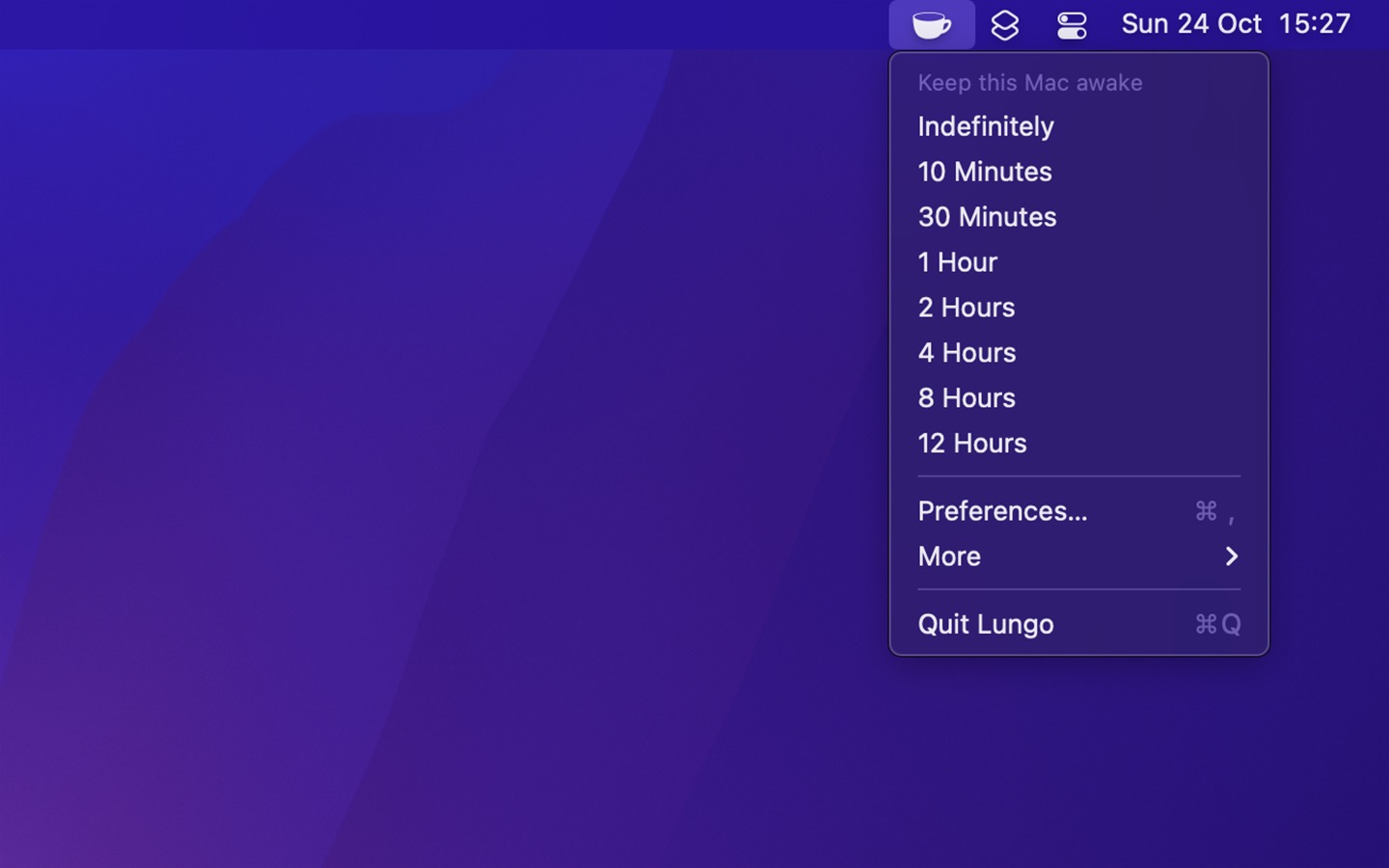
[…] Lungo is the perfect app to have on your Mac if you need a simple and straightforward way to prevent your Mac from going to sleep and its screen from dimming with a couple of mouse clicks.
Recent Reviews, all with five stars
99% positive from 1,860 ratings on Setapp
Perfect.
Perfect app, i use it every day and have it installed on all of my macs.
Great Utility
I use this app all the time. Its simple to use, works every time, and has a charming animation that plays when active. 10/10 no notes.
Excellent Balance
Strikes an excellent balance between simplicity and features.
Simple, elegant and effective
Great at what it does, nice and simple interface with a fantastic logo and the right settings. Great app by a great developer
Frequently Asked Questions
I have a feature request, bug report, or some feedback
Click the feedback button in the app or send it here.
Lungo did not keep my computer awake
- If you have the “Allow display to sleep while keeping computer awake” setting enabled, the computer is still awake even if it looks like it’s sleeping because the screen is off.
- If you close the lid (clamshell mode), Lungo is only able to keep your Mac awake if it’s connected to a charger and an external display. This is a macOS limitation.
- If you have the “Allow sleep while screen is locked” setting enabled, you may have locked the screen before leaving it, which would cause Lungo to not keep your computer awake.
- If you have the “Deactivate when switching to battery” setting enabled and you disconnect the power adapter, Lungo would not keep your computer awake. You might have accidentally unplugged it or there might have been a power failure.
- If your computer has a sleep schedule, it will take priority over Lungo. This is out of Lungo’s control. See below.
- If you have set the computer to log out after a certain amount of time in “System Settings › Privacy & Security › Advanced”, it will take priority over Lungo. This is out of Lungo’s control.
- If you see apps open again when you wake up your computer, it means your computer was restarted for some reason. Lungo cannot keep your computer from restarting. Some common reasons it may have restarted are a power outage, macOS crash, or a scheduled shutdown or restart (see below).
- You can check how long your computer has been awake and when it was last rebooted to narrow down the problem. You can also check when the computer was last logged in by typing the command
lastin the Terminal app.
- You can check how long your computer has been awake and when it was last rebooted to narrow down the problem. You can also check when the computer was last logged in by typing the command
Some things you could try:
- Make sure you are on the latest macOS and Lungo versions.
- Restart your Mac.
Does it work when the lid is closed?
No, that’s not allowed for apps on the App Store, for good reasons. Imagine you activate it while your computer is doing a heavy task and then put the laptop in your bag. Your laptop could easily overheat.
The exception to this is if it’s connected to a charger and an external display.
However, if you want this, there are some solutions on Ask Different.
Does Lungo keep my Mac awake even if there is a scheduled sleep?
No. A sleep, shutdown, or restart schedule takes priority over Lungo. This is out of Lungo’s control.
macOS no longer shows the schedule in System Settings, but a schedule that you set on an older macOS version, or with the pmset command, still works. To see the schedule, run pmset -g sched in the Terminal app. To remove a repeating schedule, run sudo pmset repeat cancel.
Can I left-click the icon to toggle it like with Caffeine?
Yes, choose “Activate on Left-click” in the settings.
Can Lungo automatically activate when I open a certain app?
I don’t plan to support this. It’s a lot of work to implement and only a few people have requested it.
However, you can achieve it using the Shortcuts app. Create a new shortcut with the “Set Enabled State” action provided by Lungo. Use Shortcuts automations to run the shortcut when a certain app opens.
You could also use BetterTouchTool or Keyboard Maestro.
Can Lungo automatically activate on a set schedule?
I don’t plan to do this built-in, but you can achieve it with Shortcuts automations.
Can Lungo automatically activate when I switch to a specific focus mode?
I don’t plan to do this built-in, but you can achieve it with Shortcuts automations.
How can I make Lungo be activated until a specific time?
This is not supported built-in, but you can use the Shortcuts app to achieve it. Get the “Enable Lungo until time” shortcut and either pin it to the menu bar or add a global keyboard shortcut to trigger it. You could also use Raycast, BetterTouchTool, or Keyboard Maestro to trigger it.
Can I use a custom duration?
Lungo comes with a set of commonly used durations, which should be enough for most users. People love Lungo for its simplicity. Not having custom times also helps prevent decision fatigue. Lungo has tens of thousands of users and only a few people have requested support for custom durations.
However, power users can take advantage of the Shortcuts app to use custom durations. Drag the “Set Enabled State” Lungo action into the shortcut editor in the Shortcuts app. Click “Show more” and then choose a custom duration. You can pin the shortcut workflow to the menu bar for easy access or set a global keyboard shortcut for it.
Can it keep my status on Slack, Microsoft Teams, etc, show as active?
No, that’s not the purpose of this app. Different apps use different techniques for detecting active status, which could change at any time.
How can I transfer my settings from the App Store version to the Setapp version?
Run this command in the Terminal app:
defaults export com.sindresorhus.Lungo - | defaults import com.sindresorhus.Lungo-setapp -
And to transfer the other way:
defaults export com.sindresorhus.Lungo-setapp - | defaults import com.sindresorhus.Lungo -
Can macOS do this without an app?
Yes. Run caffeinate -di in the Terminal app, and your Mac and the screen stay awake until you press ControlC. Add -t 3600 to stop after an hour.
Lungo adds a menu bar icon to turn it on and off with one click, preset durations (and custom ones with Shortcuts), and settings like “Deactivate when switching to battery” and “Allow display to sleep while keeping computer awake”.
How is it different from Amphetamine?
Amphetamine is free and has many more features, like triggers that keep your Mac awake automatically, and keeping a MacBook awake with the lid closed. If you need those, use Amphetamine. Its last update was in November 2023.
Lungo has a few presets with good defaults, is made for the latest macOS, and supports Shortcuts and a URL scheme. With Lungo, I wanted a focused and simple app with great defaults.
Scripting
You can control Lungo using anything that supports opening a URL with a custom scheme.
Lungo also comes with support for Shortcuts. For example, on macOS 27, the “Adjust Time” action adds or subtracts time from the current countdown.
TIP
You can run shortcuts from the command-line.
Integrations
- lungo-cli: Command-line tool.
- Raycast commands
- Note: Raycast commands are not the same as plugins. How to install commands.
Custom URL scheme
For example, to activate Lungo for 10 minutes, run this terminal command:
open --background 'lungo:activate?minutes=10'
Commands
activatedeactivatetoggle
The activate and toggle commands support the parameters hours and minutes, which can be used together or individually. If you don’t specify a duration, it will use the default duration you have set in Lungo.
(Use lungo-cli if you need to get the active state)
Examples
Shell
# Deactivate Lungo
open --background 'lungo:deactivate'

# Activate Lungo for 1 hour and 30 minutes
open --background 'lungo:activate?hours=1&minutes=30'

# Activate Lungo for 1 hour and 30 minutes (Alternative)
open --background 'lungo:activate?hours=1.5'

# Toggle Lungo with the default duration
open --background 'lungo:toggle'

# Toggle Lungo for 10 minutes
open --background 'lungo:toggle?minutes=10'
Node.js
import {execFileSync} from 'node:child_process';

execFileSync('open', ['--background', 'lungo:toggle']);
Swift
import Cocoa

let command = "lungo:toggle"

let configuration = NSWorkspace.OpenConfiguration()
configuration.activates = false
NSWorkspace.shared.open(URL(string: command)!, configuration: configuration)
AppleScript
do shell script "open --background 'lungo:toggle'"
Python
import subprocess

subprocess.run(['open', '--background', 'lungo:toggle'])
Older Versions
- 2.7.2 for macOS 15
- 2.6.0 for macOS 14
- 2.4.2 for macOS 13
- 2.2.2 for macOS 12
- 2.0.4 for macOS 11
- 1.9.0 for macOS 10.15
- 1.7.0 for macOS 10.14
- 1.6.0 for macOS 10.13
These are free for everyone but they will not run on newer macOS versions.
Get Lungo
Prevent your Mac from going to sleep
$4, one-time purchase
- Platform
- macOS
- Requires
- macOS 26 or later
- Category
- Utilities
- Released
- July 2017
- Privacy
- No data collected
- Developer
- Sindre Sorhus